
Handling a client's revision request
When your client hits Request changes on a post you've sent them, the post lands back on your side with the status Revision needed. From here it's all your work: read what they want changed, fix the post, and send it back for another look.
How you know a client has requested changes
Two ways at once:
- An in-app notification in the bell icon at the top of your workspace, with the post title and the fact that a revision was requested.
- An email in your inbox from Say Less Office (unless you've turned the "Revision requested" email off in notification settings).
The post's status also flips to Revision needed everywhere you'd see it: the calendar, the list, the dashboard's status bar.
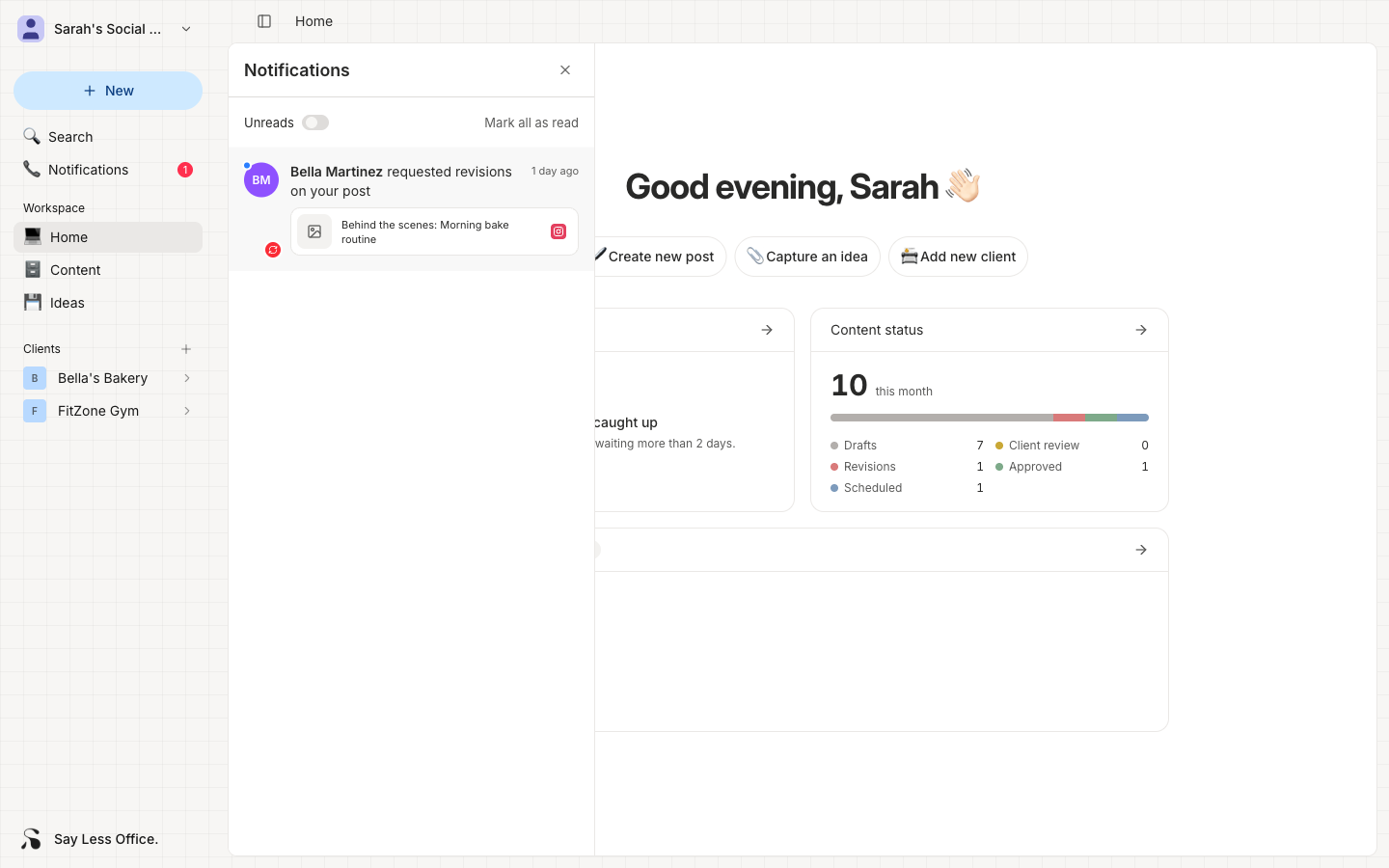
Where to read your client's revision note
Open the post (click the bell notification, or find the post on the calendar or list) and open the Conversation panel from the icon in the composer header. Your client's revision note is at the top of the thread as a regular comment. Most clients leave a short line explaining what they'd like changed.
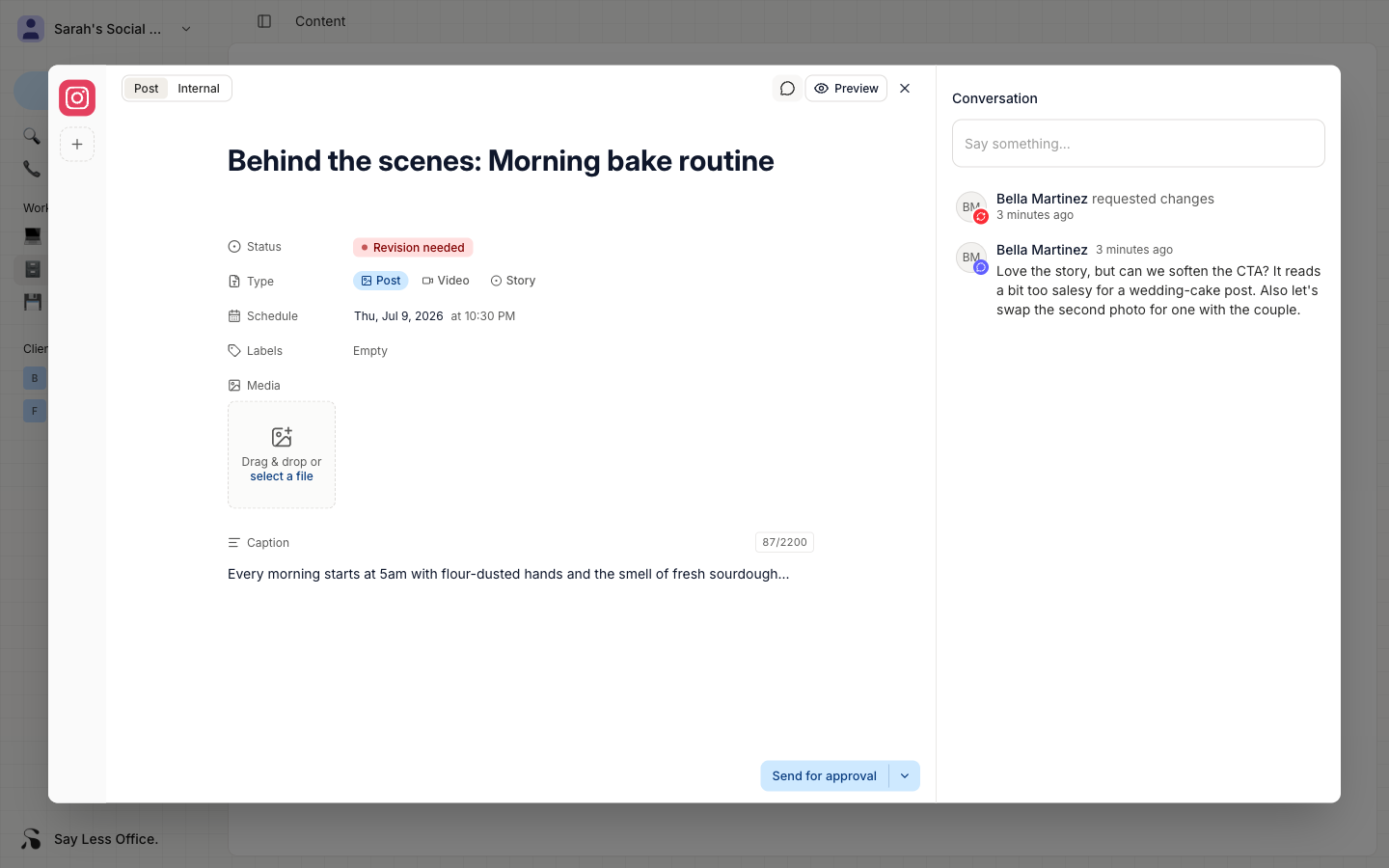
How to fix the post and send it back for another look
Once you know what to change:
- Make the edits in the composer, same as any other post.
- Click Send for approval in the footer bar (or from the calendar hover menu).
The post's status flips back to Review needed and your client gets notified that a revised version is waiting for them.