Managing your email notifications
Say Less Office sends you exactly two kinds of email:
- When a post is waiting for your review. Your SMM sent something over and needs you to approve or send it back.
- When someone comments on a post you can see. Usually your SMM replying to something you asked, or leaving a note on a post.
How to change your notifications
- Click your project name at the top-left of the sidebar.
- Pick Settings from the menu.
- Toggle the switch for either email.
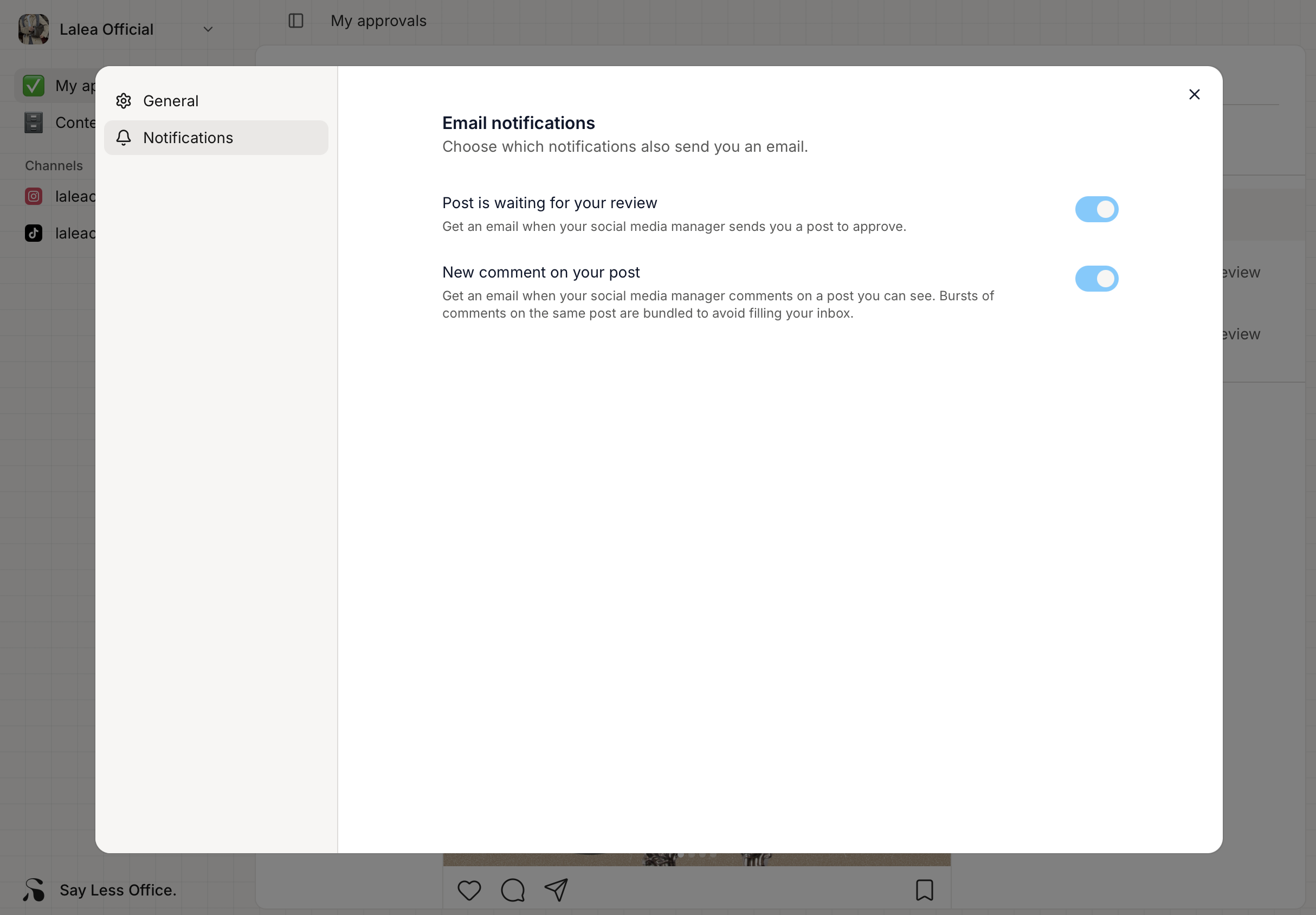
Changes save immediately - no confirm button.
What if you're missing emails you'd expected?
- Check your spam / junk folder first. Every so often a Say Less Office email lands there and stays.
- Confirm the toggle is on in Settings. It's easy to have flipped it off months ago and forgotten.
- Confirm your email is verified. If the address on your account hasn't been verified, Say Less Office won't send to it. You'll see a yellow banner at the top of Settings if that's the case.
- Reach out to your SMM. If you know a post is waiting on you but the email never arrived, message them. They can cancel the review and re-send it, which fires a fresh notification.