
Commenting on a post
Comments are the middle ground between "approve" and "request changes". Use them for context, questions, and small feedback that doesn't need to bounce the whole post back.
How to add a comment to a post
Every post has a Conversation thread underneath the preview. Type in the Say something... box and click Post.
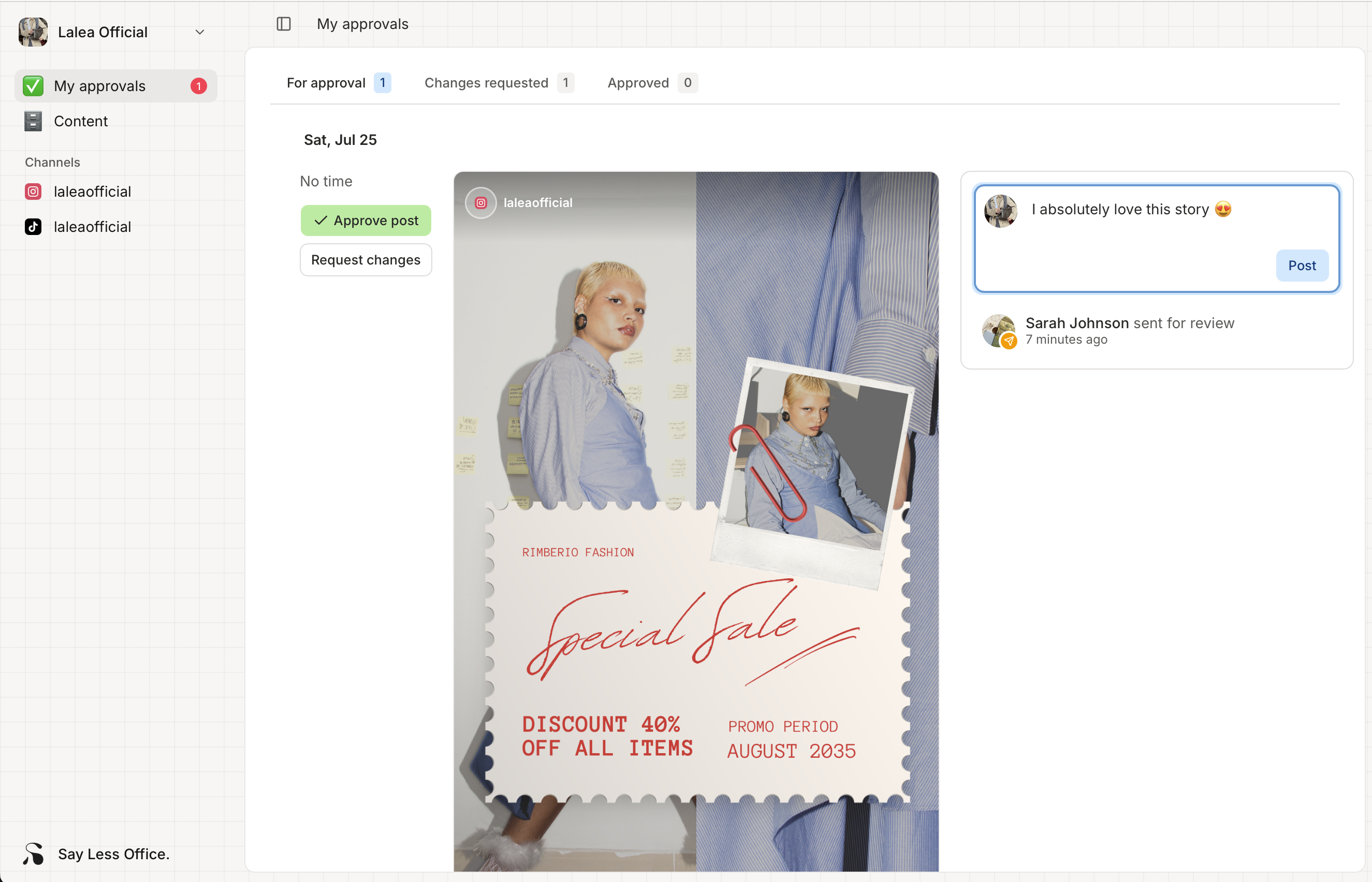
Your comment appears at the top of the thread. Your SMM gets an email that you commented, so they'll see it even if they weren't checking the portal at that moment.
How to react to a comment
Hover any comment and a small toolbar appears above it with two quick emoji reactions and a picker for more. Click any emoji to toggle a reaction on or off. Reactions are the fastest way to say "got it" or "yes exactly" without adding another comment to the thread.
When to leave a comment vs. request changes
Comments are best for the smaller stuff:
- Questions. "Where did this photo come from - was it the one from the shoot on Tuesday?"
- Confirmations. "Yes go ahead - this looks great."
- Context. "This is for the anniversary campaign, not a regular post."
- Small tweaks. "Add my co-founder @jordan somewhere in the caption."
If the change is bigger (rewrite the caption, swap the image, change the tone), send it back with Request changes so it's clearly tracked as a revision, not just a comment.
How to edit or delete your own comment
Hover your own comment and a small menu (three dots) appears. From there you can edit or delete. You can only edit / delete comments you wrote yourself.