
Archiving or deleting a client
When you're done with a client, you can either archive them (they leave your sidebar but everything stays saved and you can restore them later) or delete them permanently. Both live at the bottom of the client's settings modal.
How to archive a client (and get them back later)
Archive is what you want almost every time. It hides the client from your sidebar and keeps all of their content, posts, and history intact. If they come back, restoring is a click.
Open the client's settings from the sidebar gear icon, scroll to the Archive section near the bottom, and click Archive client.
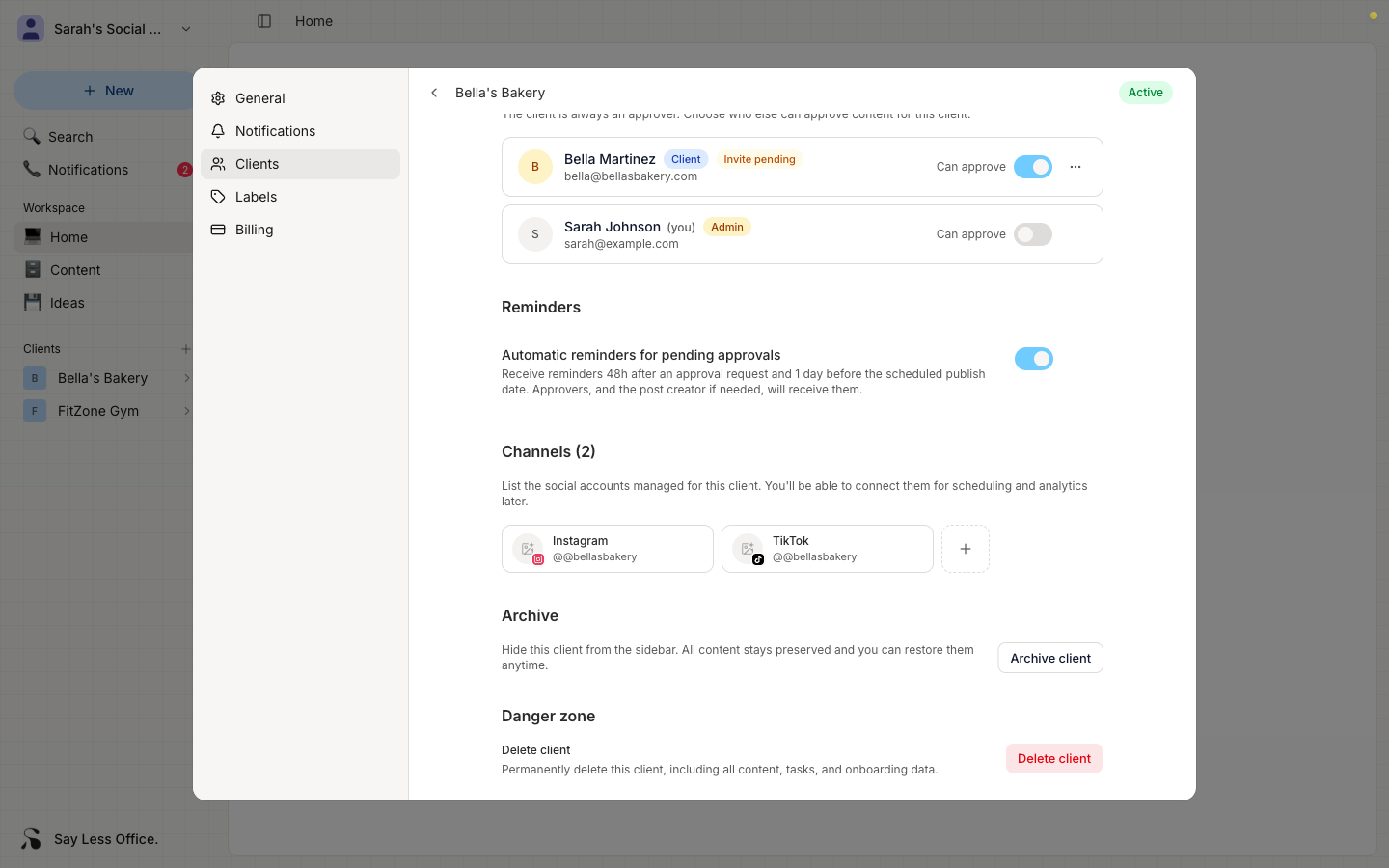
The client disappears from your sidebar right away. Their posts stay in your content pages if you happen to have them pinned by client, and you can bring them back any time.
To restore an archived client, open their settings from wherever you can still reach them (a filtered content page or a direct link), scroll to the same Archive section, and click Restore client.
How to permanently delete a client
Deletion is the nuclear option. Everything about the client is removed and it can't be undone: their posts, their portal, their onboarding info, and any records tied to them.
To delete, open the client's settings, scroll to the Danger zone at the very bottom, and click Delete client.
A confirmation dialog opens asking you to type the client's name to unlock the delete button. That's there to make sure you're deleting the right one.
When to archive vs. permanently delete
- Archive if there's any chance you'll work with them again, or you want to keep the record for a portfolio or reference.
- Delete if you're 100% sure you don't want any trace of them in your workspace.