
Editing your client's social channels
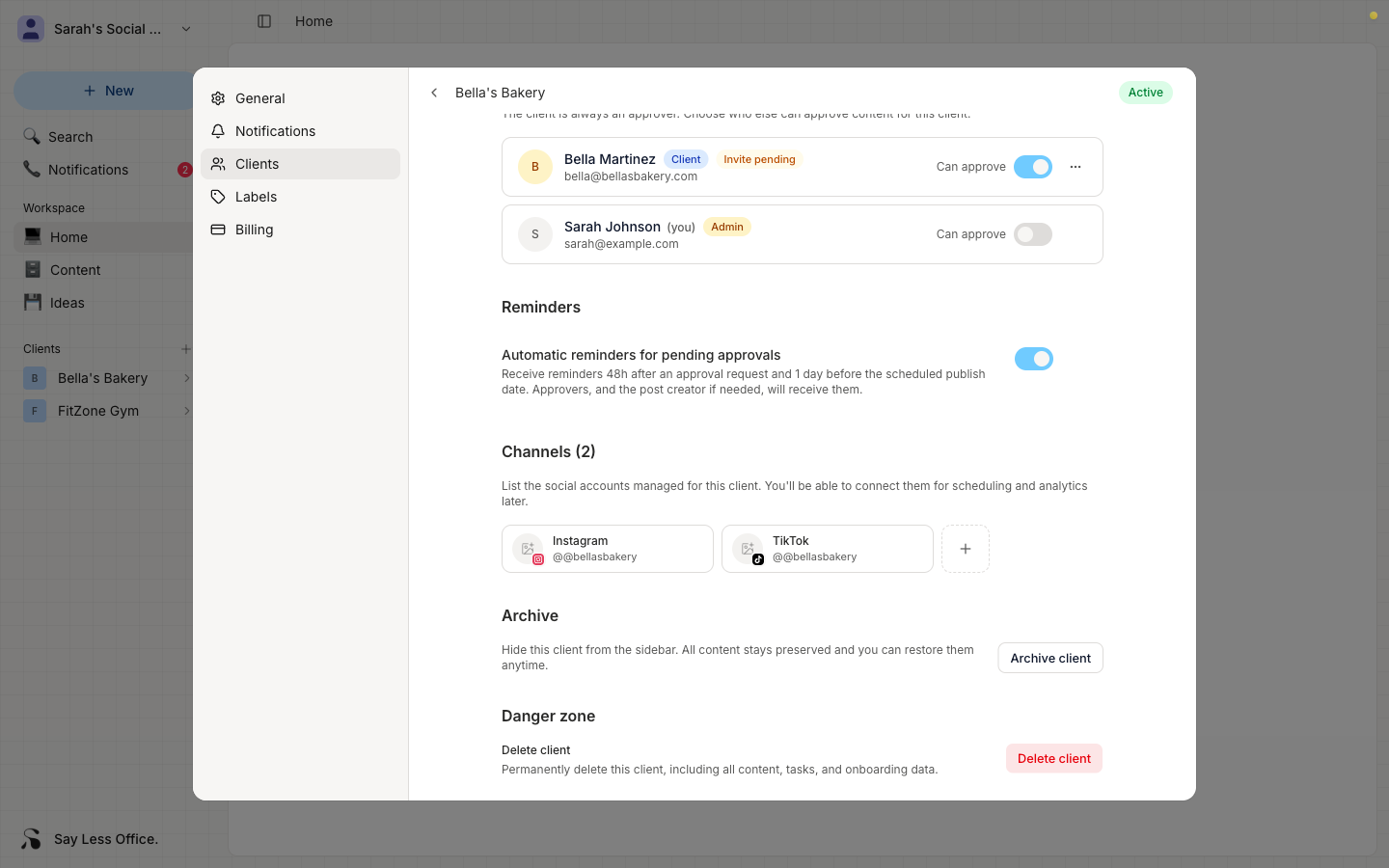
The channels on a client are the social accounts you're managing for them. Adding them here tells Say Less Office which platforms this client posts on so you can pick between them when you draft a post.
Where to find your client's channels
Open the client's settings from the sidebar gear icon, then scroll to Channels. The heading shows a count of what's on there right now.
How to add a new channel
Click the + tile at the end of the row. Pick a platform (Instagram, TikTok, X (Twitter), Facebook, LinkedIn, or Pinterest), then fill in:
- Handle - the
@handleon that platform, without the@sign. This is what shows up on the account chip in the composer and on every post preview. - Display name (optional) - a longer, human-friendly name for the account ("Bella's Bakery" while the handle is
bellasbakery). Used as a fallback label if the handle is empty and stored on the account for reference.
How to edit a channel
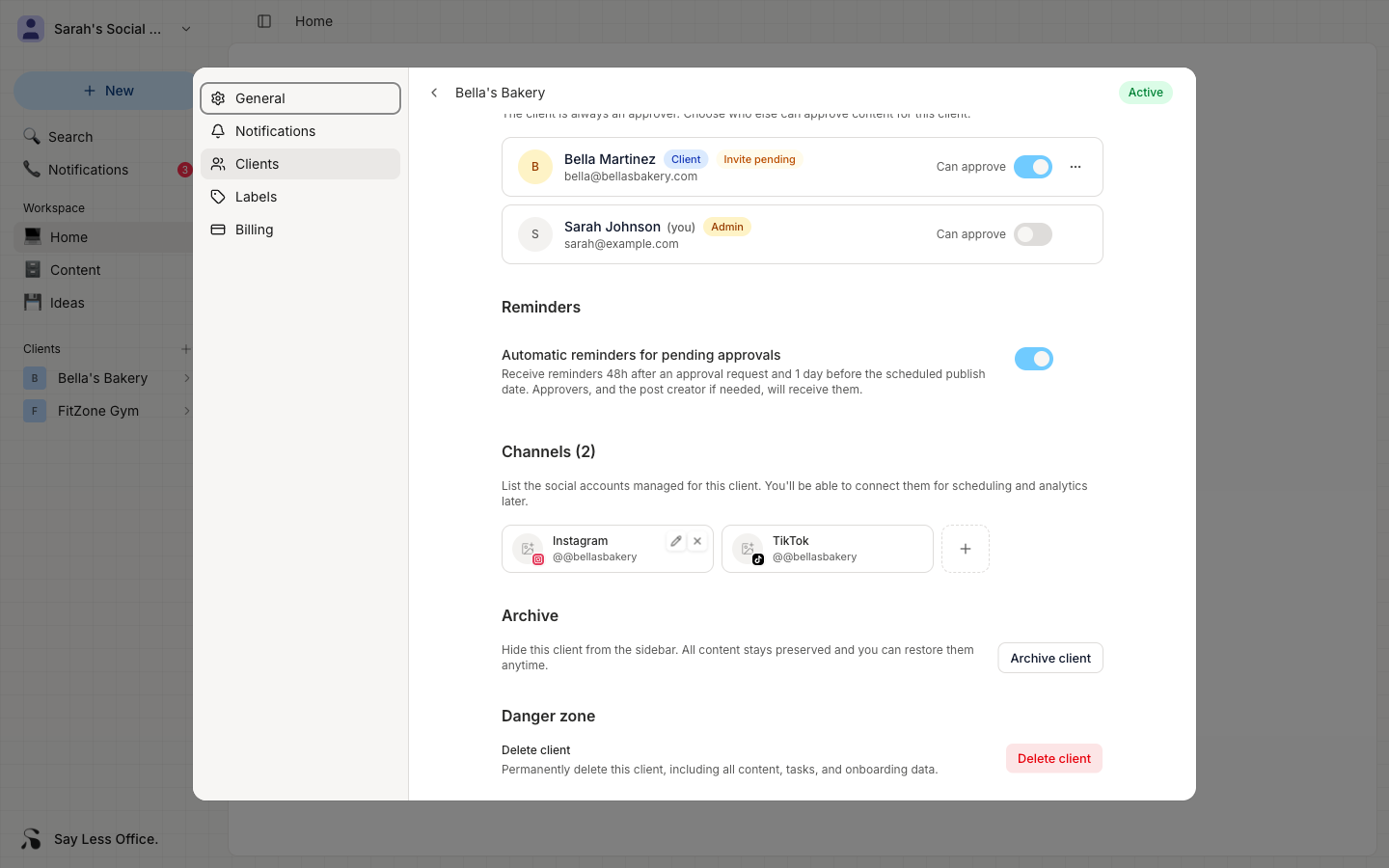
Click the pencil on the channel tile to edit the handle or display name. Changes save when you're done.
How to remove a channel
Click the X on the channel tile to remove it.
If the channel has no posts attached, it's removed straight away. If posts or per-platform variants are attached to it, you'll get a confirmation dialog telling you how many. The posts themselves aren't deleted; they stay in the client's content and just lose their link to the channel.