
Importing designs from Canva
If you build your graphics in Canva, you can bring a finished design into a post without downloading it and re-uploading it. Connect your Canva account once, then pick a design from inside the composer and it lands in the post's media.
Connecting Canva the first time
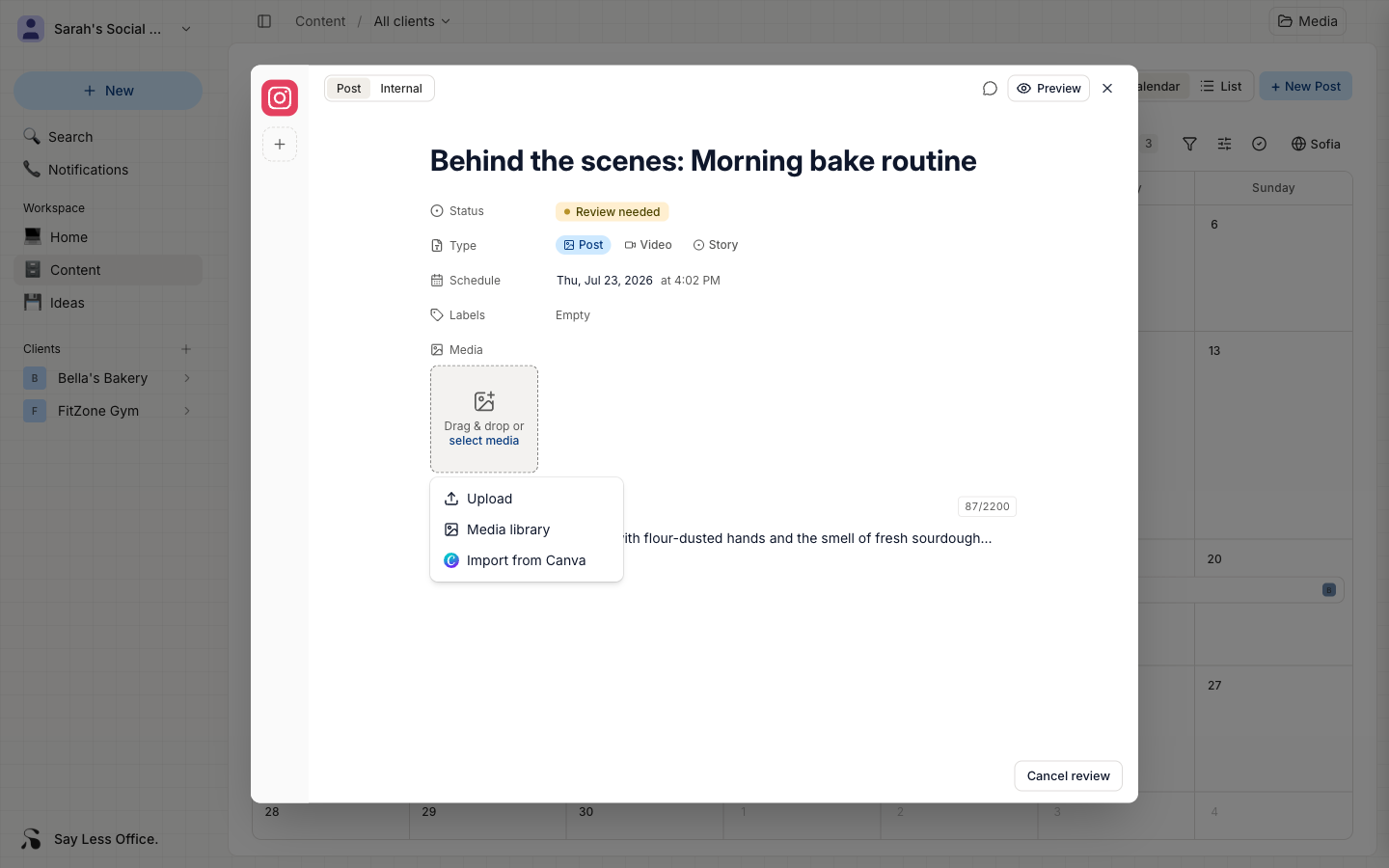
- Open a post in the composer and click the Drag & drop or select media tile on the media field.
- Choose Connect to Canva. A small Canva window opens for you to authorize access.
- Approve it, and the window closes on its own - your composer stays exactly as you left it, and the design picker opens.
You only do this once. After that, the same menu item reads Import from Canva. You can also connect from Settings → Integrations if you'd rather set it up before you start composing. To view or remove the connection later, see Connecting your Canva account.
Importing a design
With Canva connected, click the Drag & drop or select media tile and choose Import from Canva.
A picker panel slides in beside the post - the same place the media library opens.
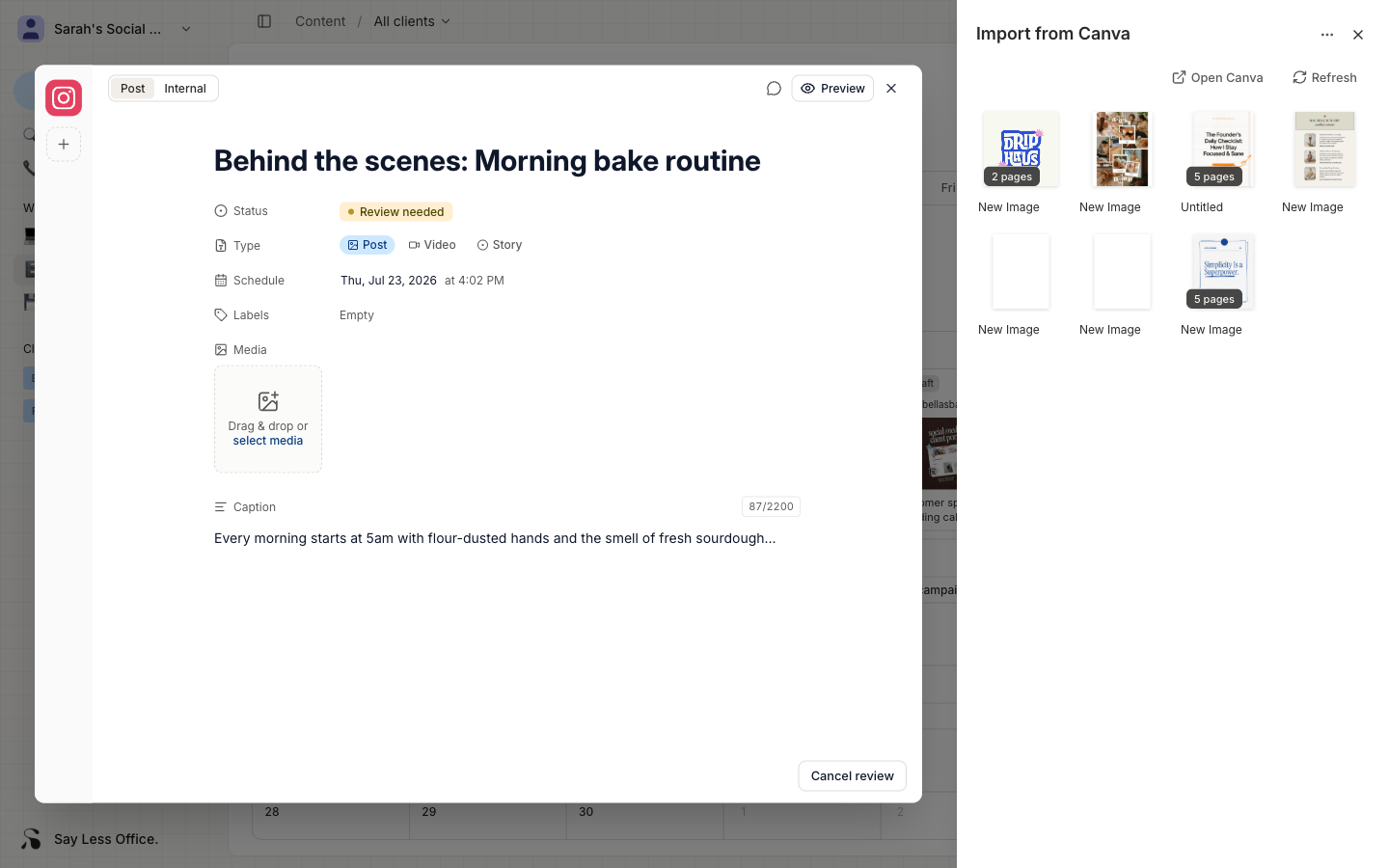
- Click any design to import it. A spinner shows on the tile while Canva prepares it, then the pages appear in the post one at a time.
- Multi-page designs come in as a carousel - every page becomes a slide, in order. A badge in the corner of the tile shows the page count.
Imported pages land in the post's media just like an upload, and you can reorder or remove them the same way.
Managing the connection
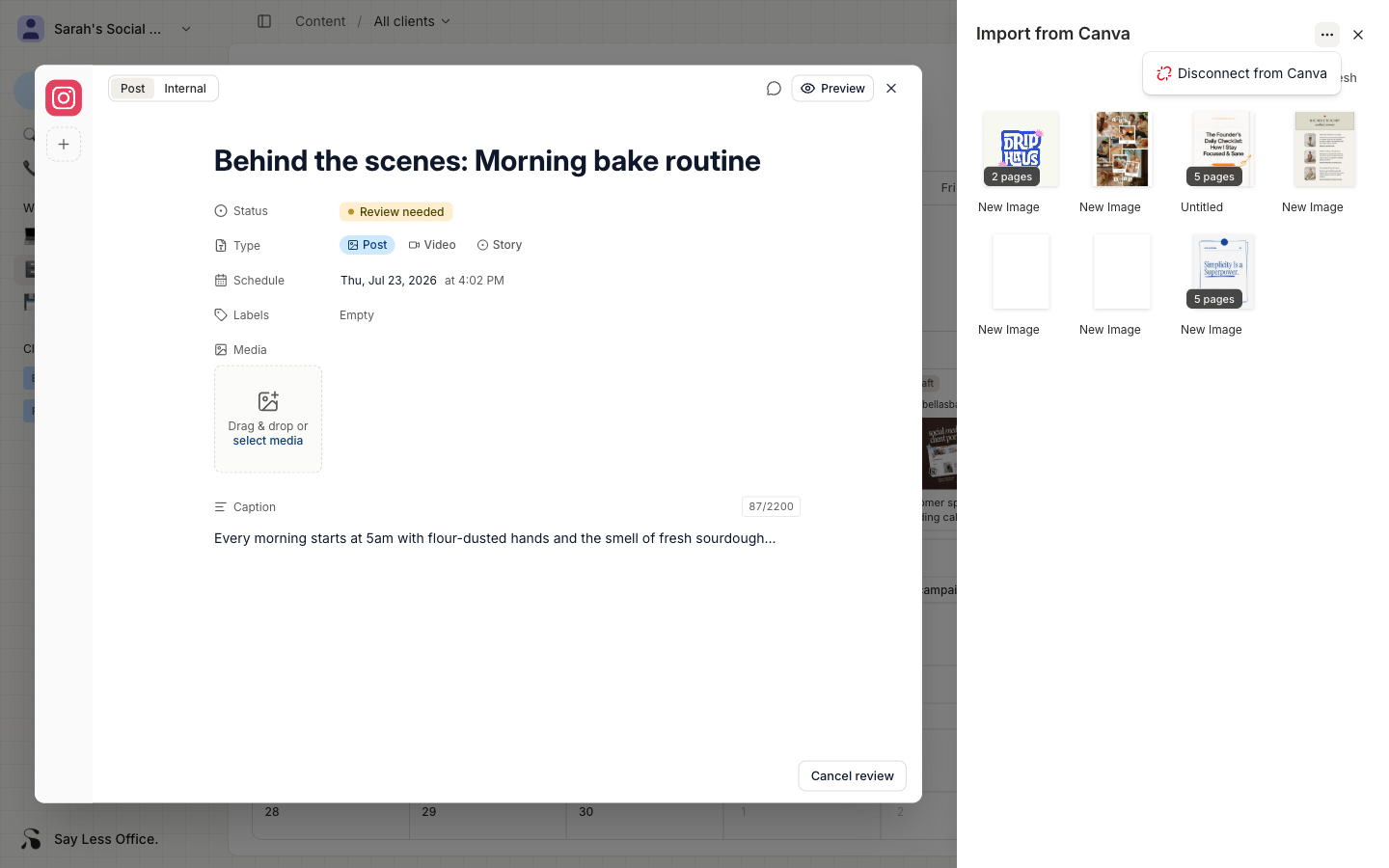
The picker's ⋯ menu (top-right) has a Disconnect from Canva option if you want to unlink the account.
You can also connect, see which account is connected, and disconnect from Settings → Integrations - see Connecting your Canva account.