Connecting your Canva account
Connecting Canva lets you pull finished designs straight into a post. You manage the connection from Settings → Integrations, and it belongs to you - the person signed in - so it follows you across browsers and devices.
Connecting
- Open Settings from your account menu and choose Integrations.
- On the Canva row, click Connect to Canva. A small Canva window opens for you to authorize access.
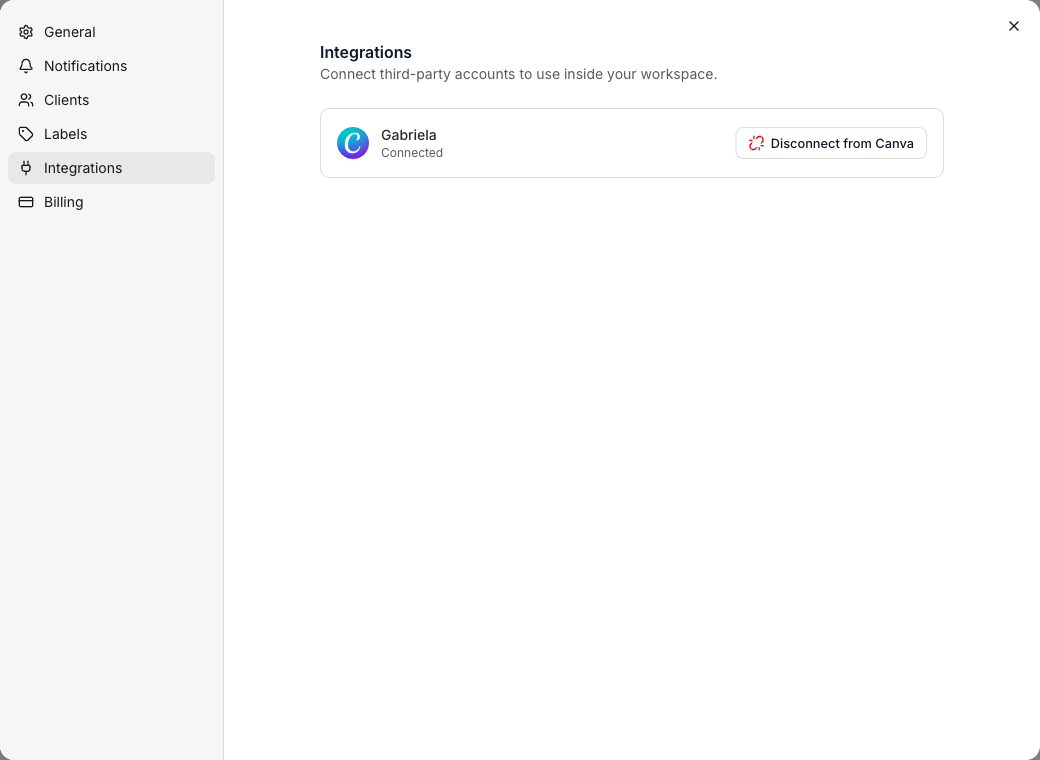
- Approve it and the window closes on its own. The row now shows your Canva account name and Connected.
You can also connect straight from the post composer the first time you import - see Importing designs from Canva.
What access it grants
The connection is read-only. Say Less Office can see your designs and export them so you can import them into a post. It cannot edit, create, or delete anything in your Canva account.
Disconnecting
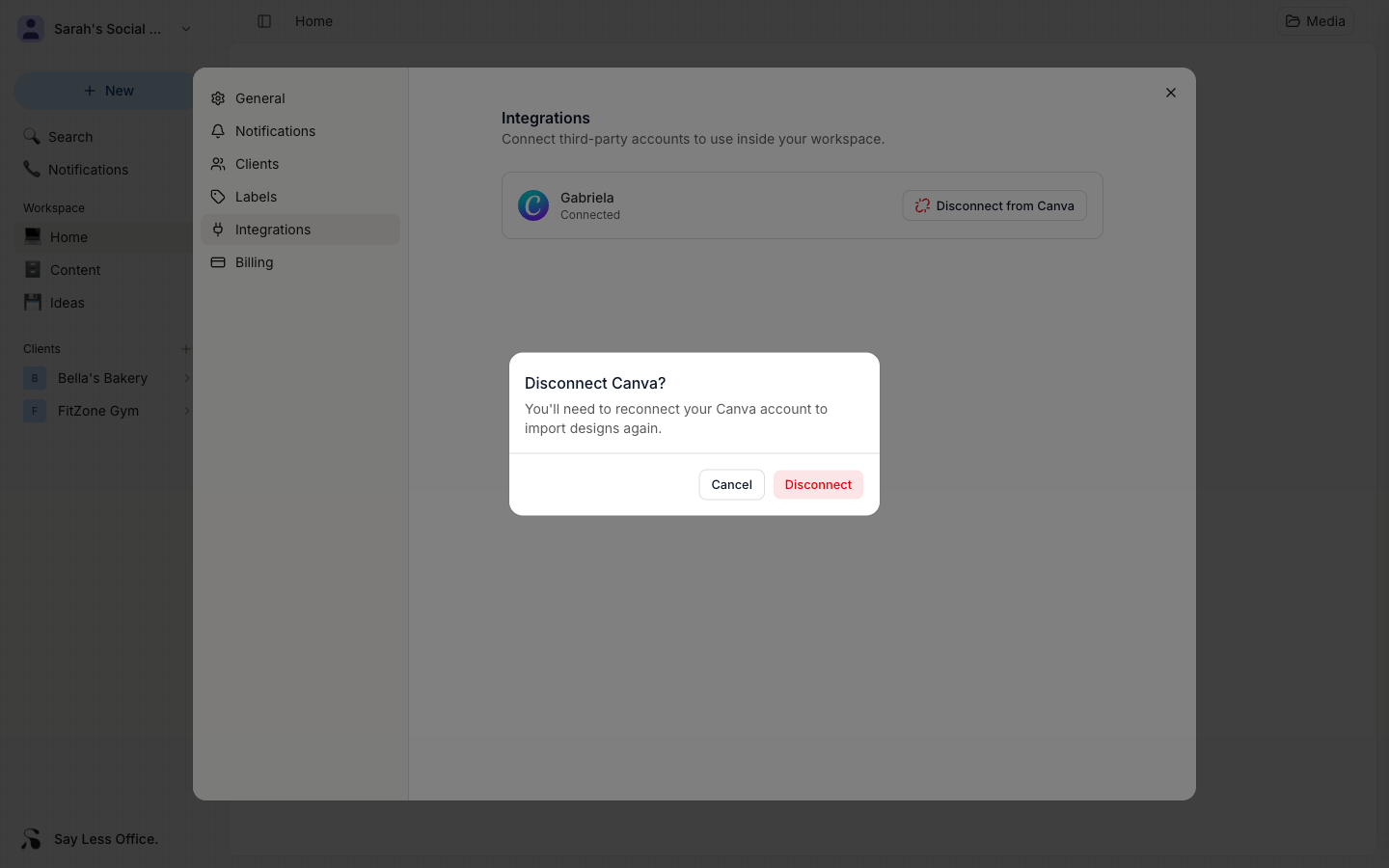
Click Disconnect from Canva on the Integrations card and confirm. This revokes Say Less Office's access at Canva straight away. Your designs, and anything you've already imported into posts, are untouched - only the link is removed. You can reconnect anytime with the same steps.
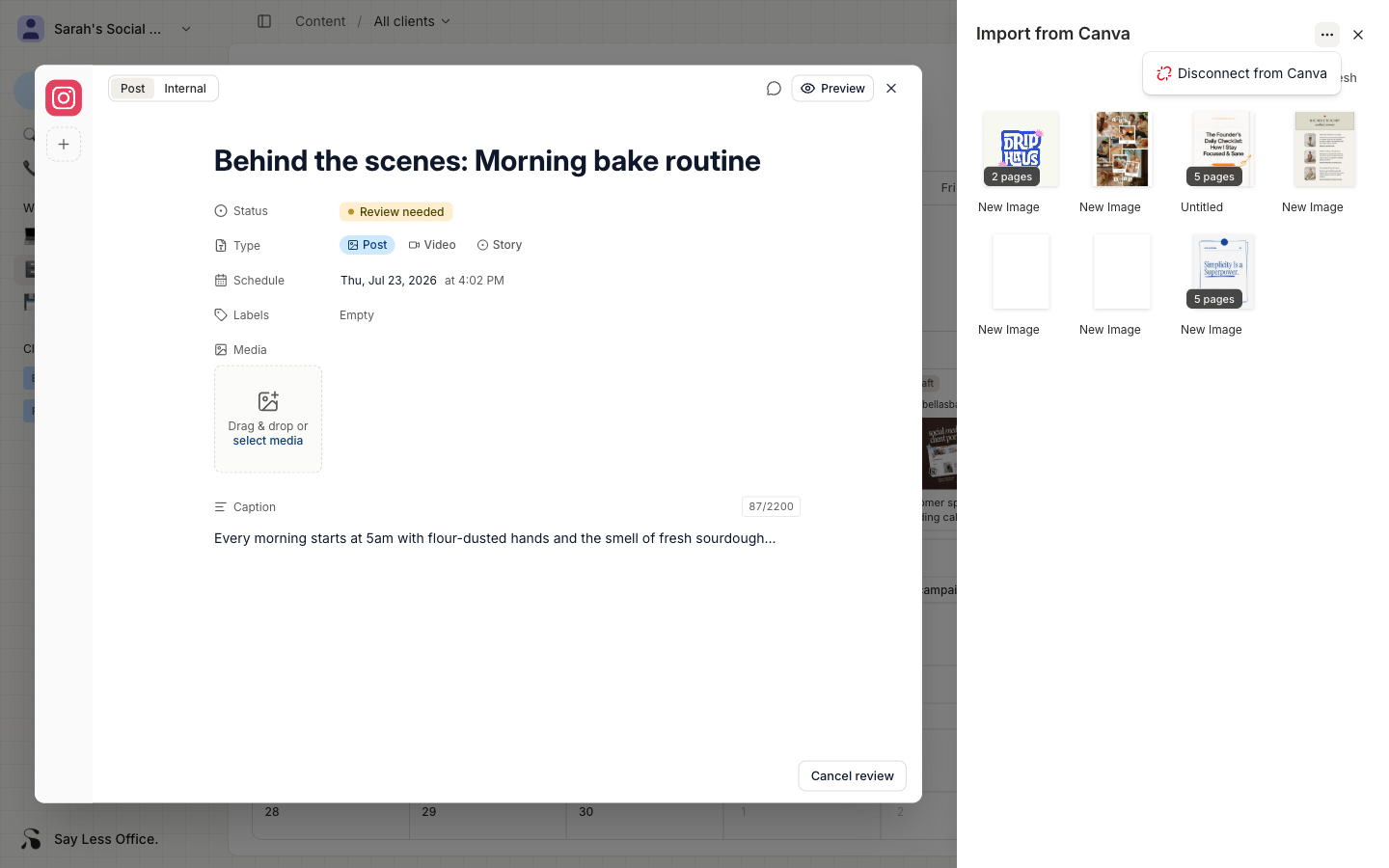
The Canva design picker in the composer has the same Disconnect from Canva option in its ⋯ menu, if that's where you happen to be.