
Inviting your client to their portal
Once you've added a client with a login email, they have an account. If you checked Email them a portal invite now while adding the client, the invite is already on its way and you can skip most of this article. If you didn't check it, or you want to send another invite later (they lost the email, the link expired), here's how.
Two ways to get your client into their portal
- Send them an invite email from the client's Members section. Say Less Office emails them a link that takes them straight to their portal.
- Share the portal URL with them yourself (in a DM, Slack, a text message, whatever). When they open it, they enter their email and get a sign-in link.
The first is convenient. The second is a fallback for anyone who deleted the invite email, or when you just want to send the URL over the channel you already use.
How to send an invite email from your workspace
To open the client's settings, hover over their row in the sidebar and click the gear icon that appears on the right.
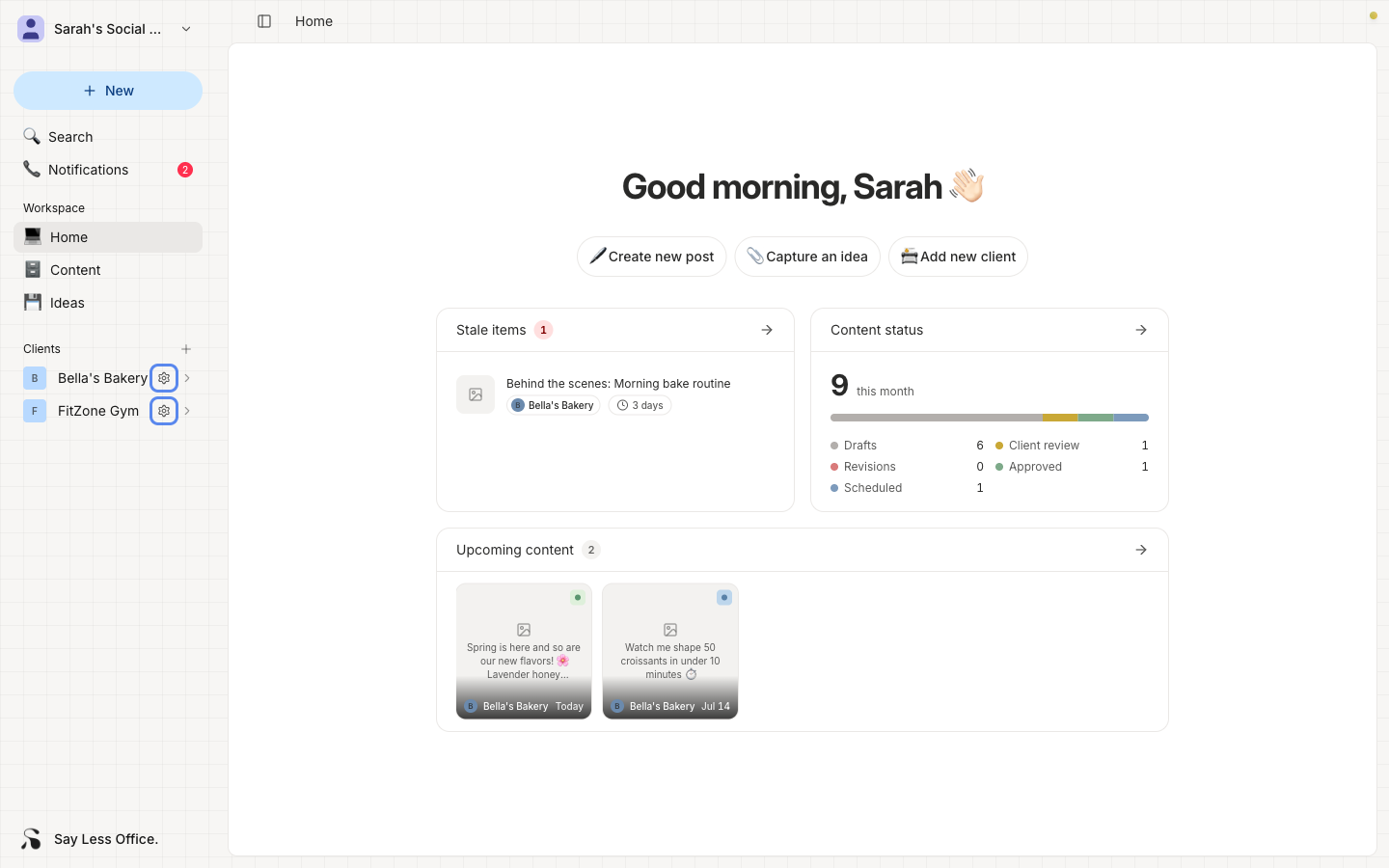
Scroll to the Members section. Your client's row is at the top, tagged as Client.
The client's row is at the top of the section, tagged as Client and always set to approve.
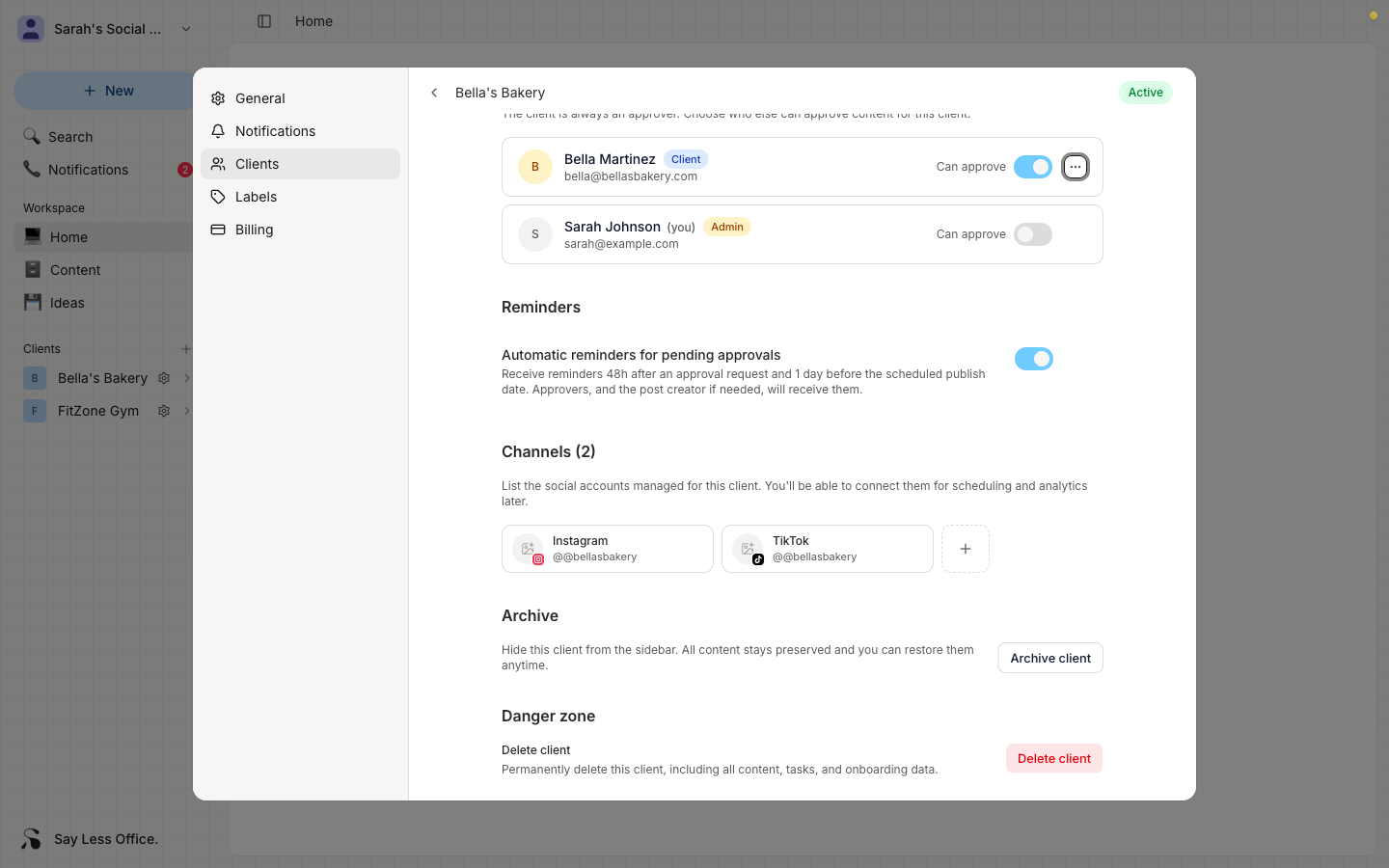
Click the ... on the right of the client row, then pick Send invite email.
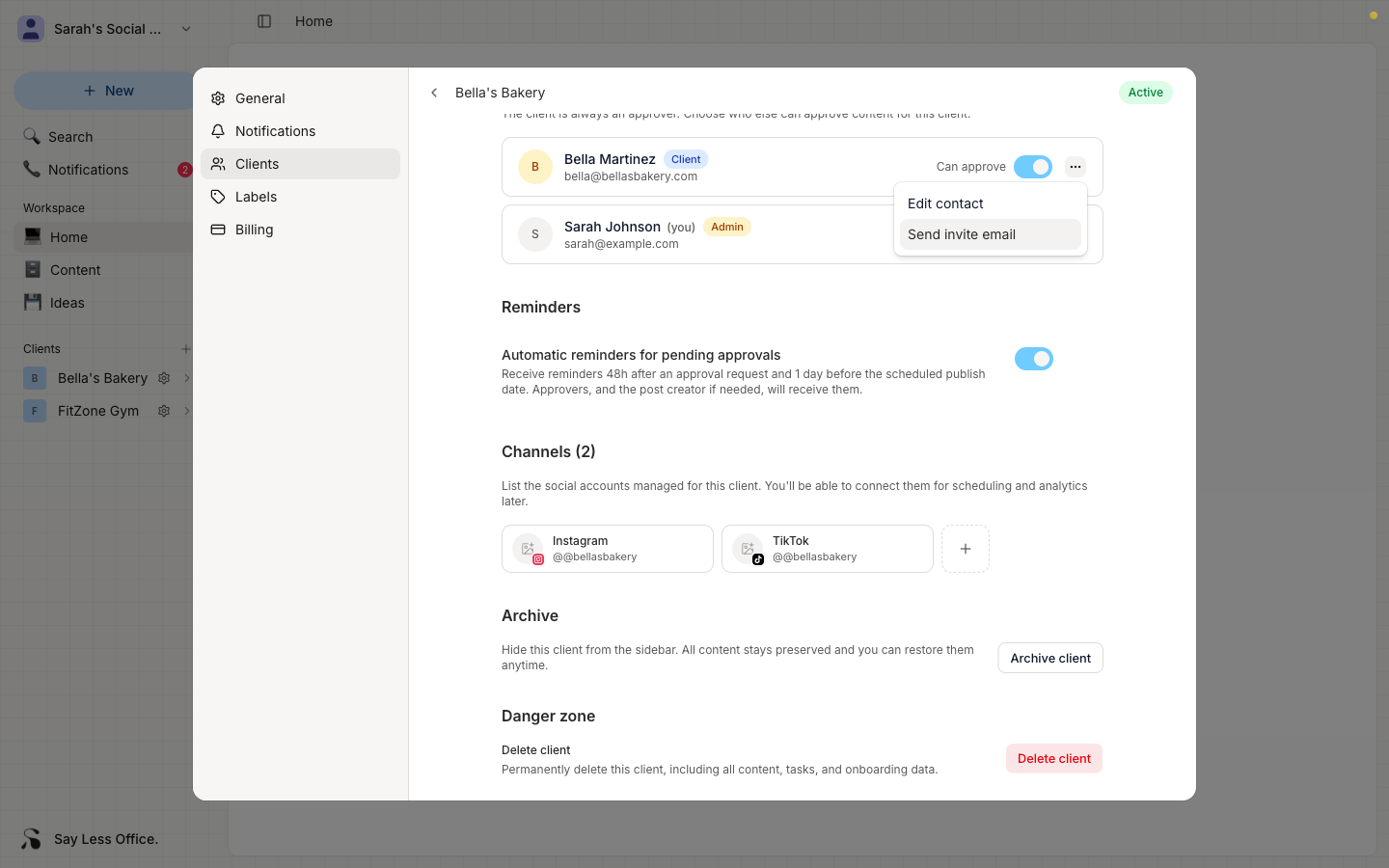
Say Less Office sends the email to the login email you set for them. Clicking the link in it drops them straight into their portal.
Resending an invite email if the first one was lost
The flow is the same as sending the first one: open the client's Members section, click the ... on the client row, and pick Resend invite email.
The invite email's button links to the permanent portal URL, so old invite emails always work - clicking any of them takes your client to the portal login where they enter their email to get a magic link. Resend when a client says they can't find the email or when their login email changed.
Until the client signs in for the first time, the client row shows an amber Invite pending pill next to their name so you can see at a glance that you've sent one and they haven't accepted yet.
What if you want to share the portal URL directly
Every client's portal has a permanent URL, set from the Portal link you chose (or accepted the default for) when you added them. It looks like saylessoffice.com/portal/bellas-bakery.
Send it over whatever channel you already use. When they open it, the portal shows a sign-in screen. They enter their email and get a sign-in link.
What to do if you haven't set a login email for the client yet
If you skipped the contact step when you added the client, the Members section shows an Add client contact placeholder instead of the client row. Click it, fill in a name and login email, then come back here to send the invite.
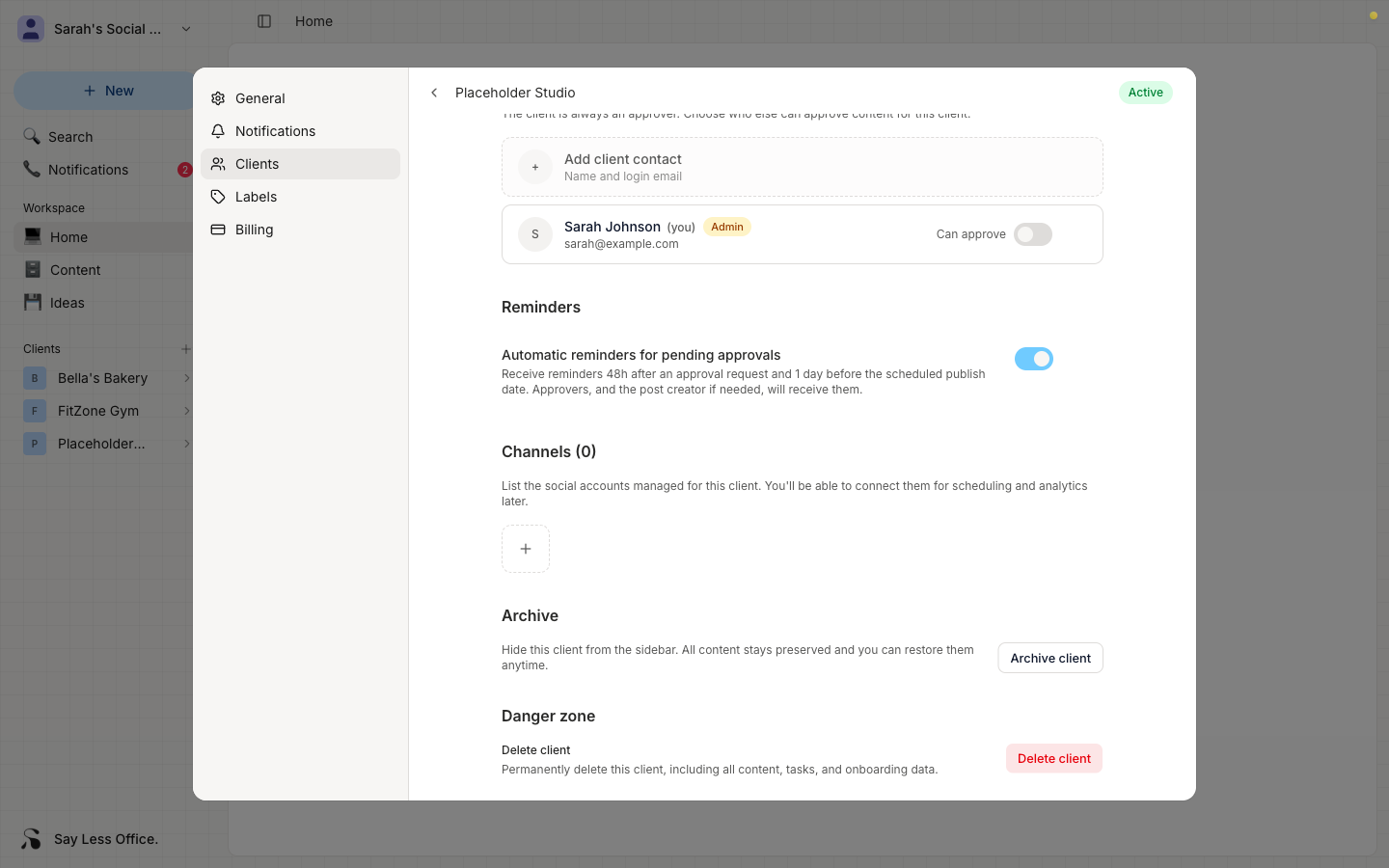
Sending an invite without a login email won't work: Say Less Office will show an error asking you to add one first.