
Changing your email address
Your email address is what you sign in with and where Say Less Office sends notifications when your clients act on posts. Both change at the same time when you update it.
Where to change your email
Open Settings from the account menu in the top-left of the sidebar. In the General section, scroll to Email address.
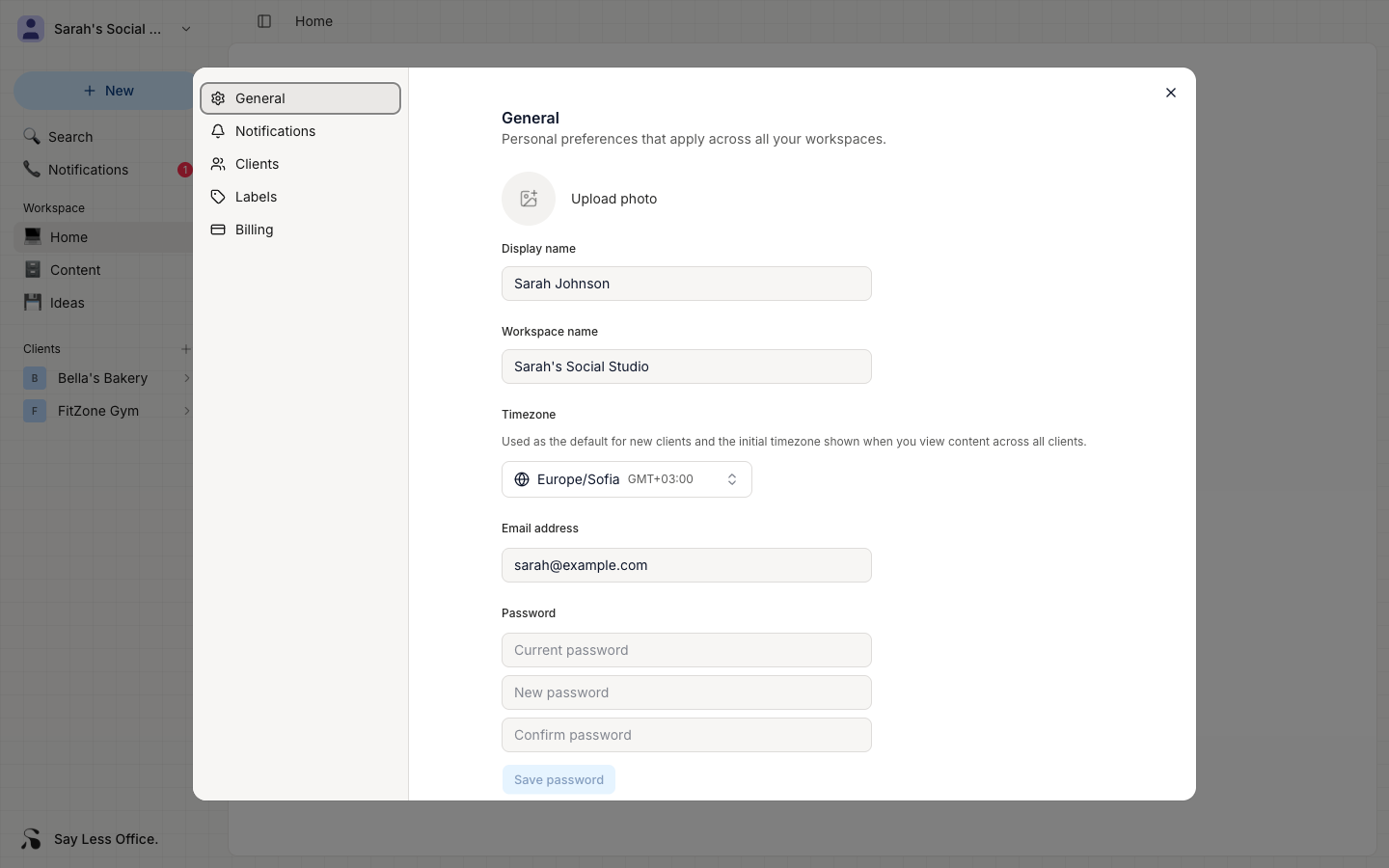
Type your new address into the field and click Save email.
What happens after you change your email
Two things change the moment you save:
- Your login email is updated. From now on, you'll sign in with the new address.
- Your email becomes unverified. Say Less Office sends a verification link to the new address automatically.
Until you click that link, notification emails pause. Client comments, approvals, and revision requests still land in your in-app notification bell, but no emails go out about them.
A small Verify your email to receive notifications banner shows in the same Email address section while you're unverified, with a Resend email button if the automatic email doesn't arrive.
Frequently asked questions
Does my client have to sign in again? No. Changing your email only affects your account. Your clients keep signing in as they always have.
Can I use an email that already has an account? No. Each email can only be tied to one Say Less Office user. If the new address is already in use, you'll see an error when you click Save email.
What if I lose access to the old email? You can still change it from Settings as long as you're signed in. The old address doesn't need to confirm anything.