Updating your profile info
Your profile is a few personal details Say Less Office uses to show you to yourself and to your clients (your name and avatar appear on your comments in the portal, for instance). All three live at the top of the General section in Settings, and each one saves itself.
How to open your profile settings
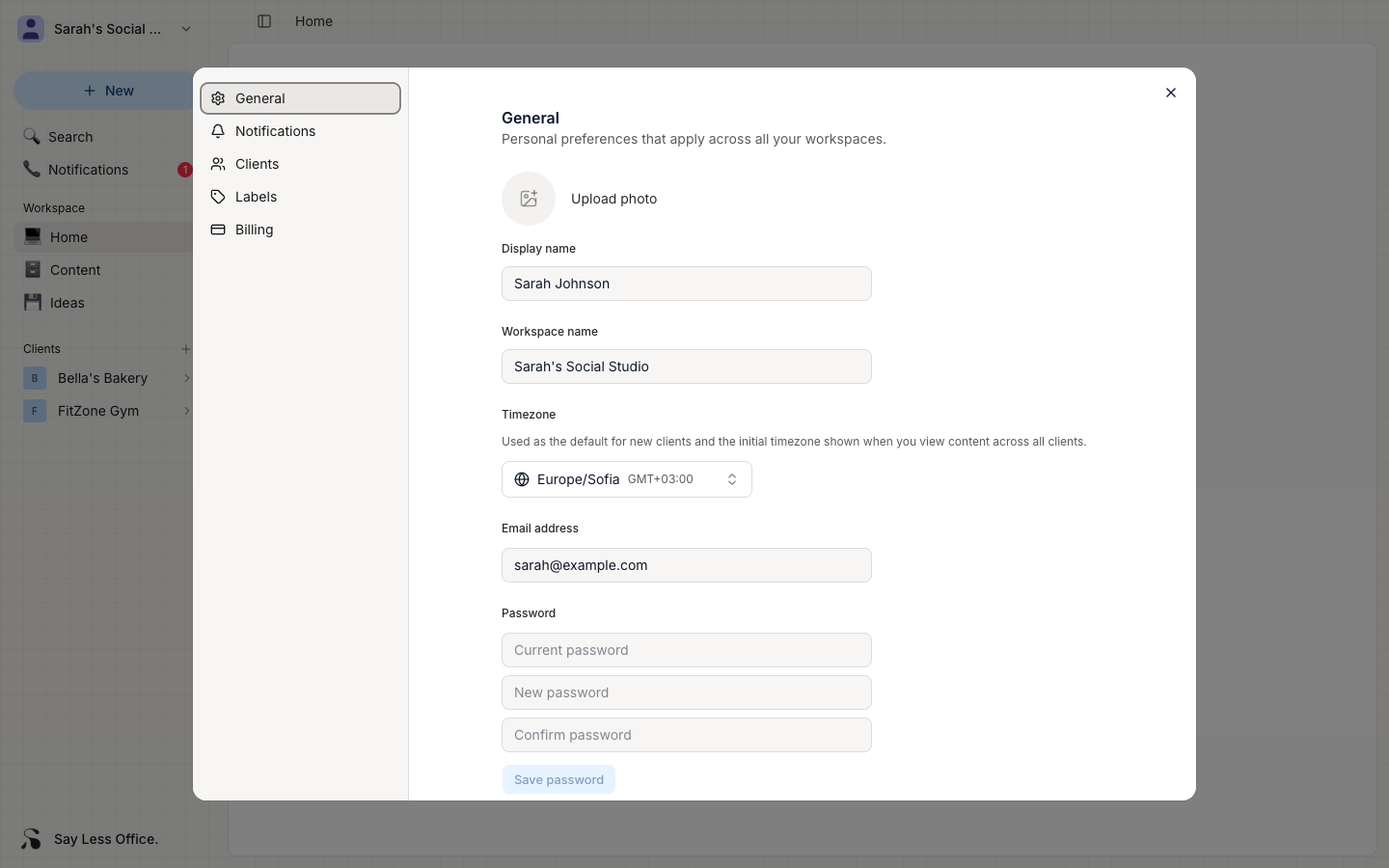
Open Settings from the account menu in the top-left of the sidebar. The General tab is what you land on. The Display name, avatar, and Timezone are all near the top.
Display name
The name that shows on your account menu and in comment threads. Type a new name in the field; it auto-saves as you type. Enter or clicking outside the field commits it immediately.
You can clear the field to remove your display name; you'll fall back to your email in places that would have shown the name.
Avatar
Click the round avatar tile to open your file picker and choose an image.
To remove it, hover your cursor over the tile and click Remove underneath. You'll fall back to a plain circle with your initial in it.
Timezone
Used as the default when you set schedule dates on posts and as the initial time zone the content calendar displays across all your clients. Change it from the picker and it saves right away.
Each client also has their own timezone (set when you added them). The client's timezone wins on their portal and on their own filtered content view; your workspace-wide timezone is just the fallback for the "all clients" view.