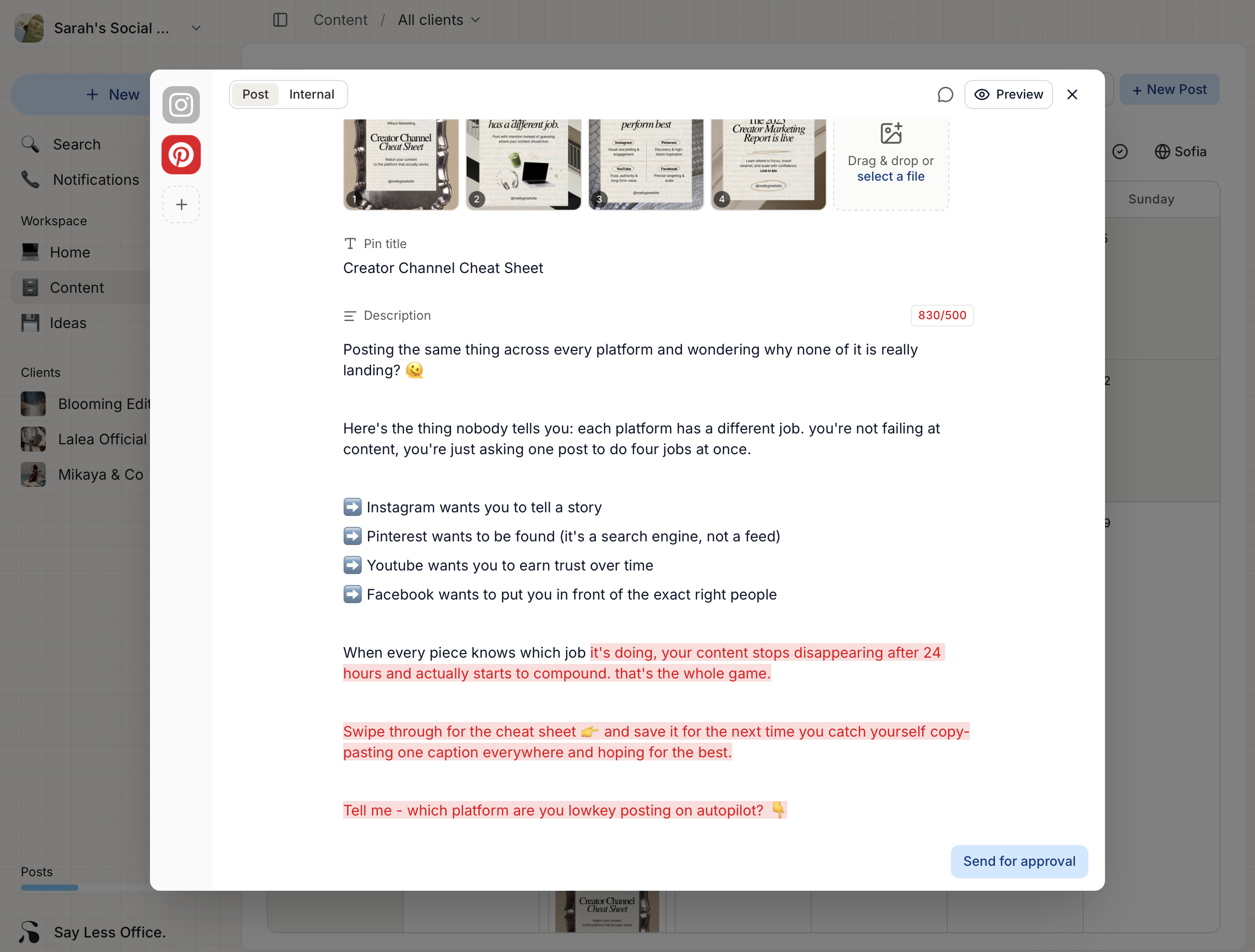
Writing captions
Writing a caption in Say Less Office is mostly just typing into the Caption field of the composer. What follows are the small shortcuts that save real time once you're posting every day.
Using slash commands in the caption
Type / anywhere in the caption to open the command menu. Three commands are available:
- Emoji - opens an inline emoji picker at the caret.
- Snippet - pastes a saved snippet at the caret.
- Hashtags - pastes a saved hashtag group at the caret.
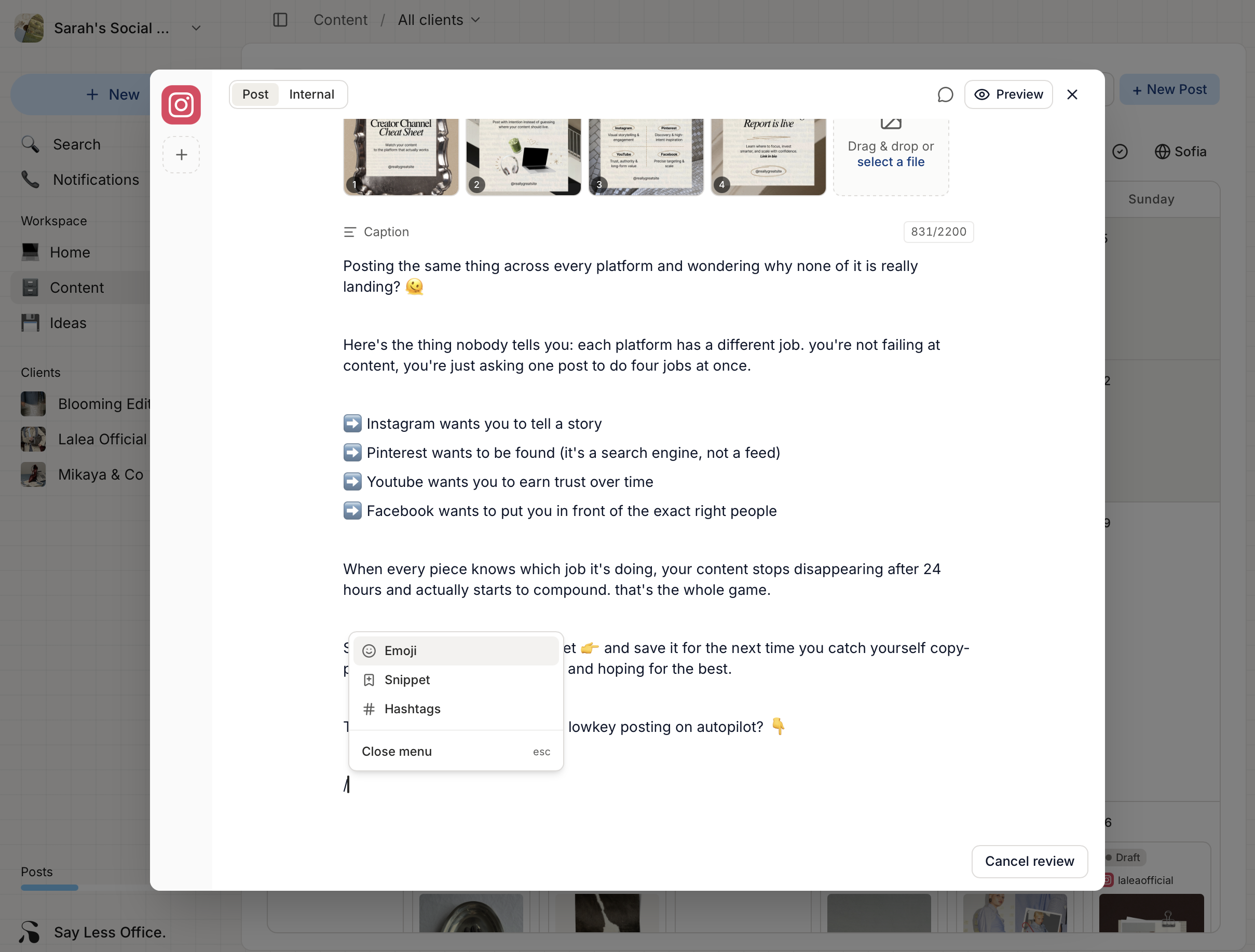
How to insert an emoji
Type /, pick Emoji, search for one, hit Enter.
Reusing lines with snippets
Snippets are any block of text you keep re-typing - sign-offs, CTAs, standard link-in-bio lines, brand taglines, disclaimers, whatever comes up more than twice.
To save one:
- Type
/, pick Snippet, then click New snippet.
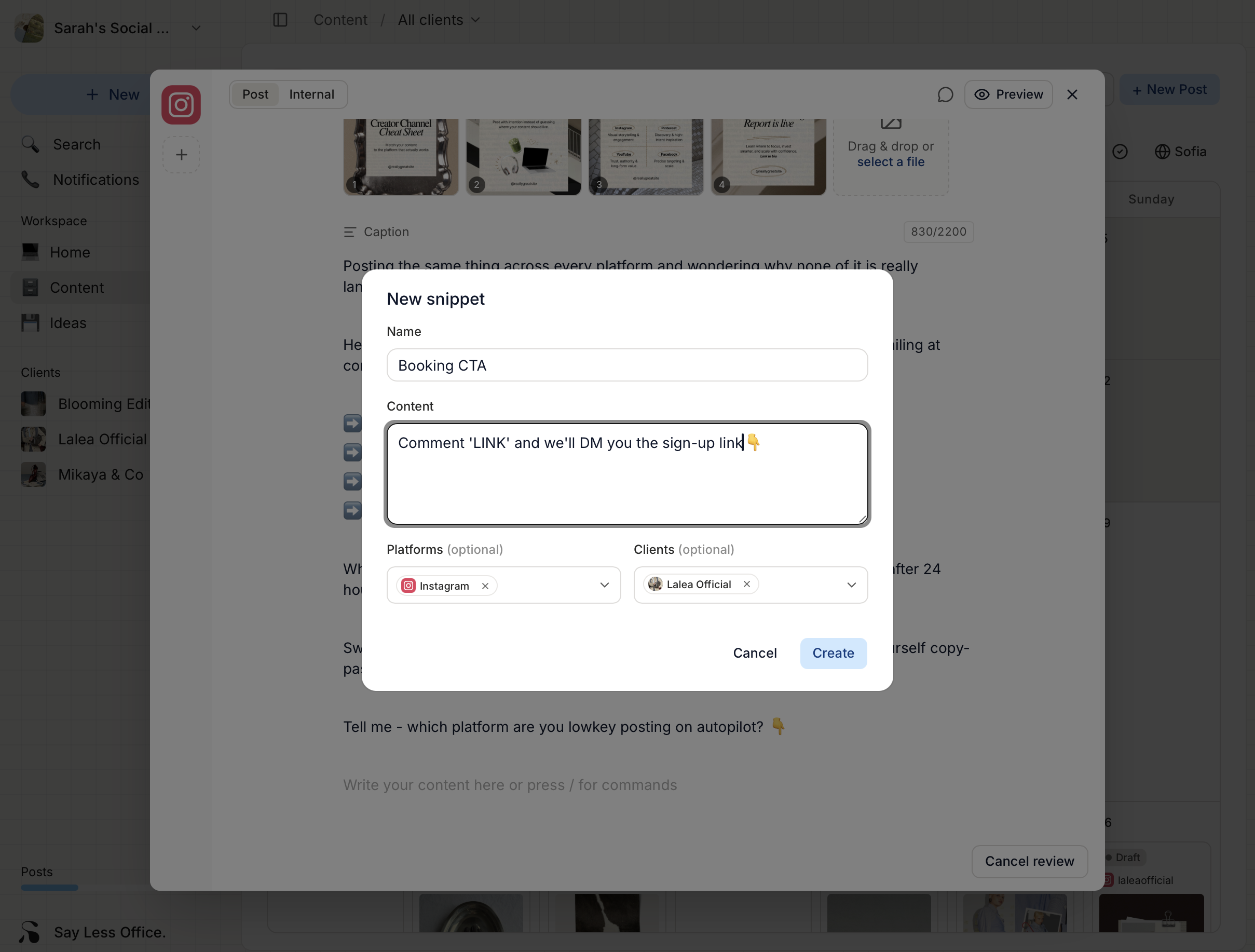
- Give it a name and paste the body. Optionally tag it to a platform or a client so it surfaces first on matching posts.
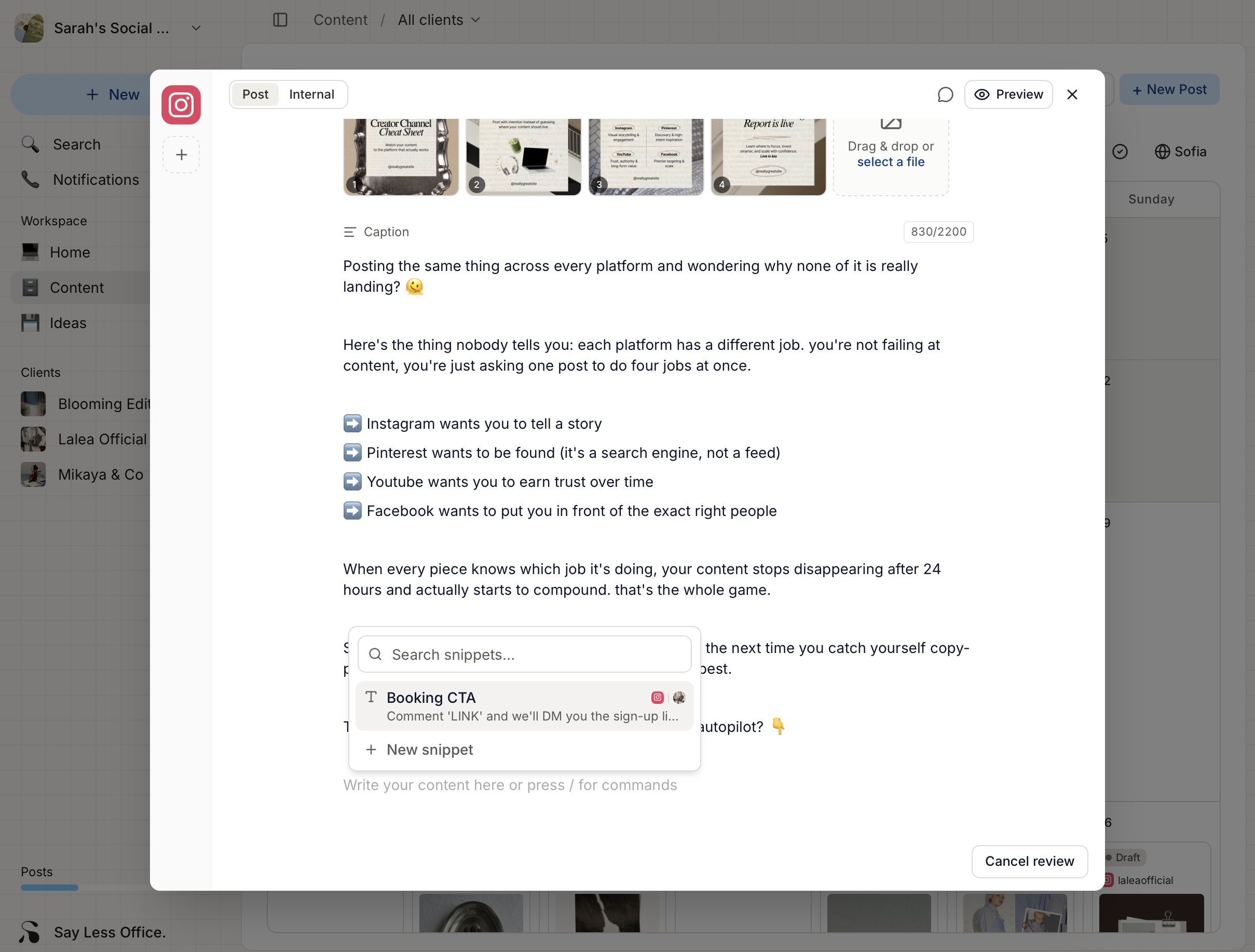
To reuse: /, pick Snippet, click the one you want. The picker sorts by the current client and platform, so relevant snippets sit at the top.
Adding hashtags
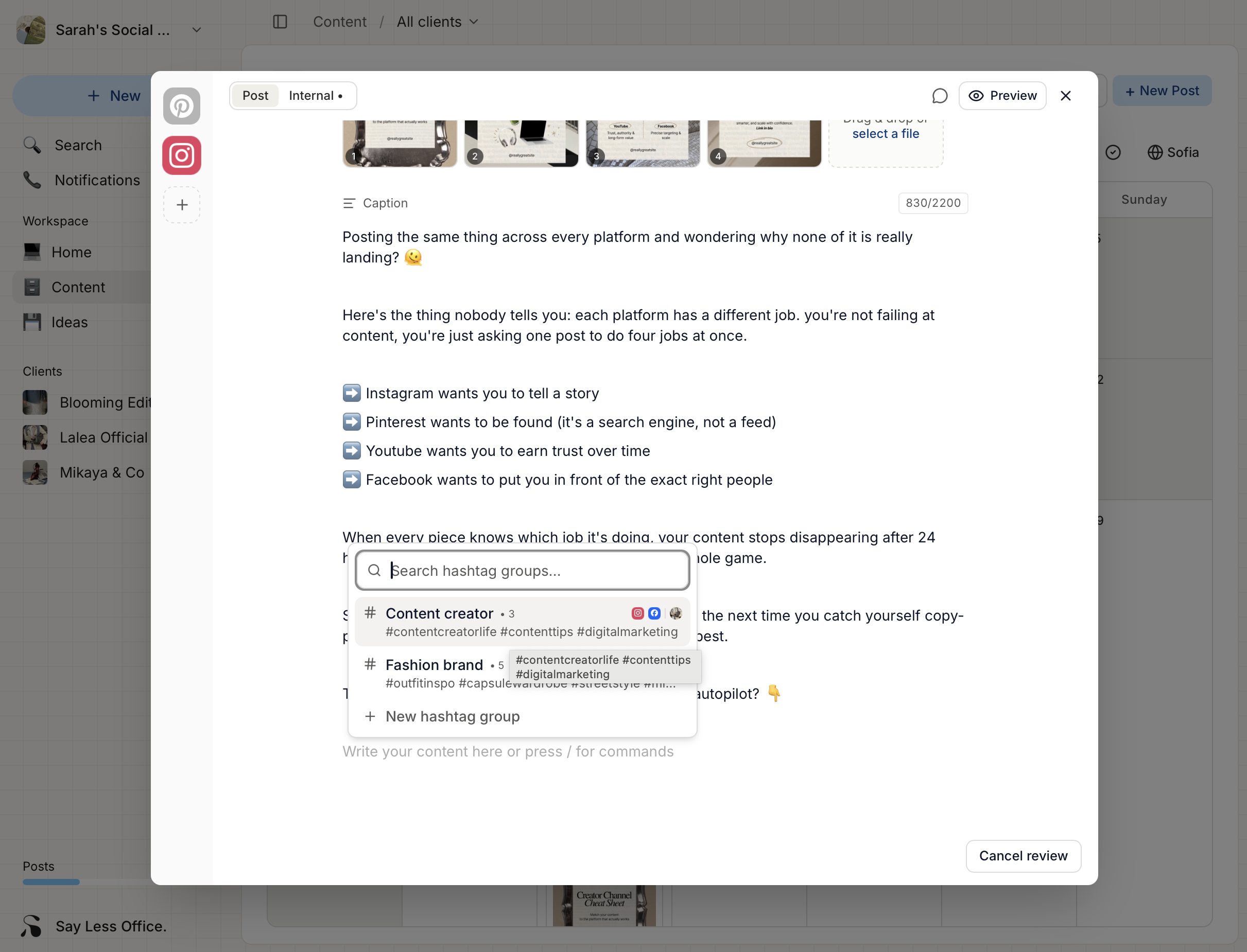
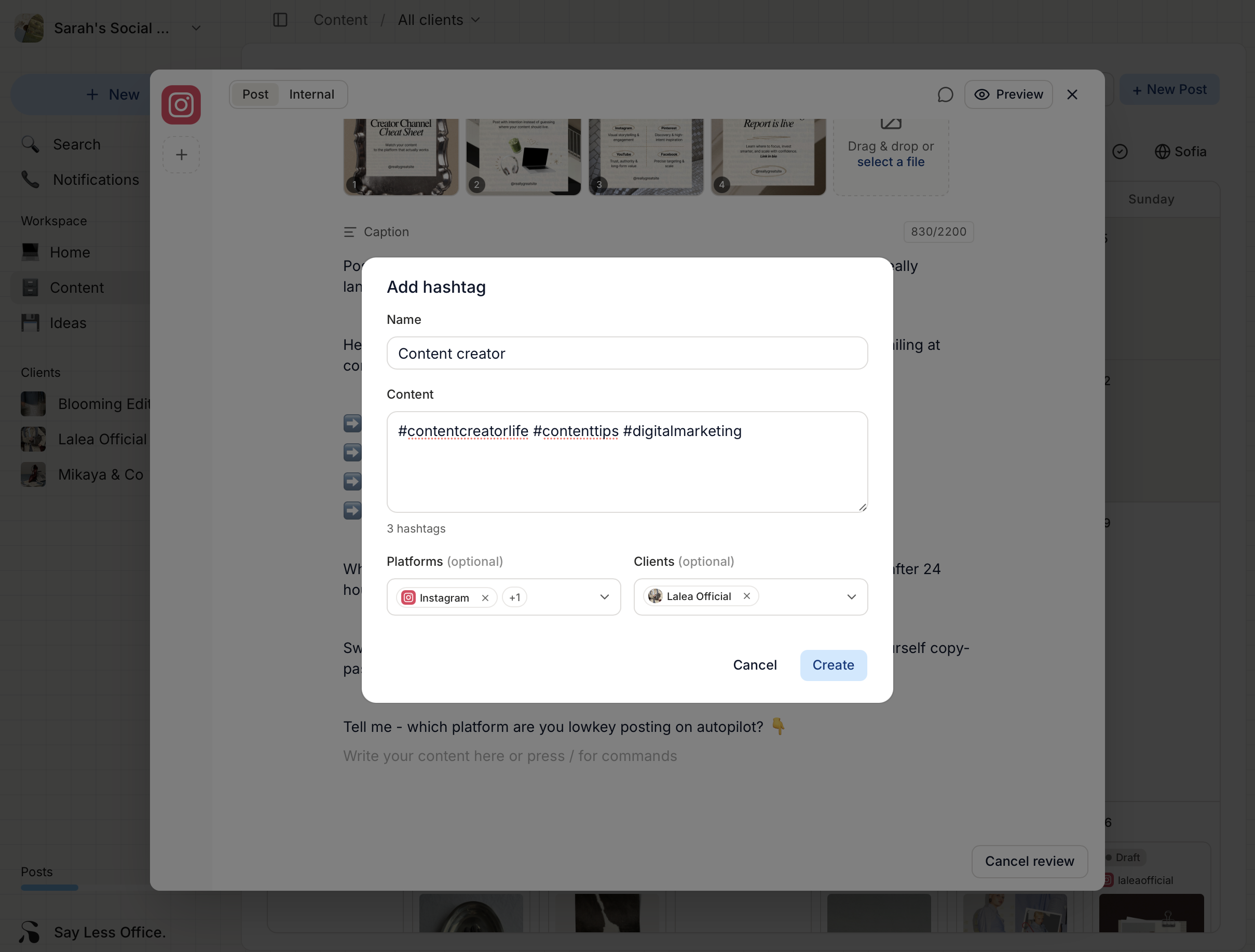
Type /hashtags in the caption to open the hashtag picker. Click any saved hashtag group to drop it in at the caret, or click New hashtag group to save one for the first time.
Staying inside the character limit
The counter in the top-right of the caption row reads <current>/<limit>, sized to the platform you're posting to (Instagram 2,200, X 280, LinkedIn 3,000, and so on). Go past and the extra characters turn red so you can see what to trim.