
Creating post variants for different accounts
Most posts start life pointed at a single account. But often you'll want the same idea to land on more than one channel, with small tweaks per channel (a shorter caption for X, different image aspect for Instagram, no hashtags on LinkedIn). Say Less Office handles this with post variants: one master post, one variant per account, with each field either shared across all accounts or customized per account.
How to add another account to a post
The account rail sits on the left side of the composer. It shows every account this post lives on, one chip per account.
- Click the
+chip at the end of the rail. - Pick the account you want to add. The picker only shows channels from the same client as the account you already picked (see below).
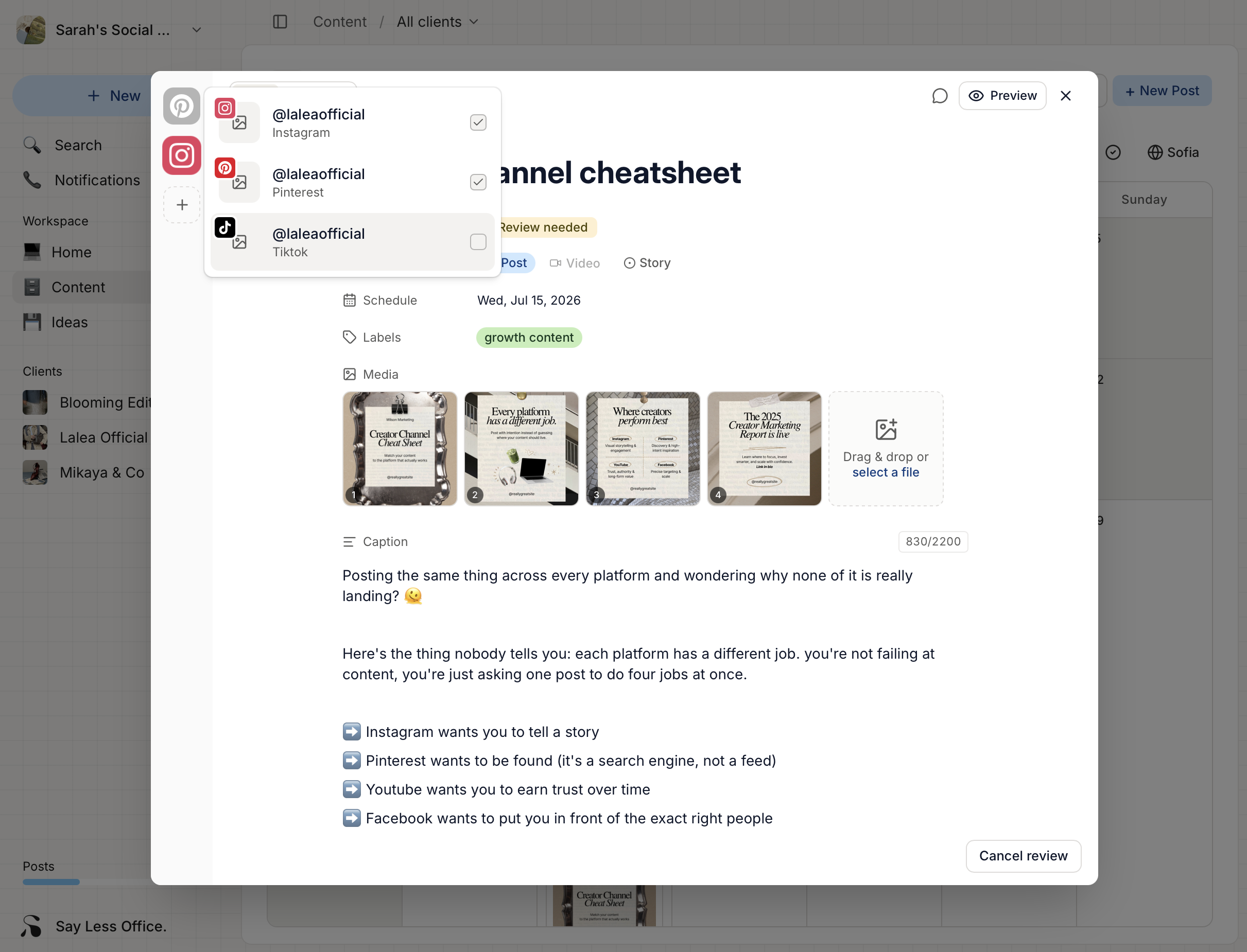
Once added, the new account becomes its own chip. Clicking a chip switches the composer to show that account's variant of the post.
How to sync a field across accounts or customize it per account
Three fields on the post - caption, media, and labels - start synced across every account you add. Type once, it applies everywhere. Great when the accounts are close cousins (Instagram + Facebook of the same brand).
To un-sync a field for the active account so it becomes per-account:
- Click the field's label (e.g. the small "Caption" or "Media" label). A one-item dropdown opens.
- Pick Un-sync caption (or whichever field). The label picks up a small
Link2Officon to show it's now customized. - Edit the field. Your change only applies to the currently active account.
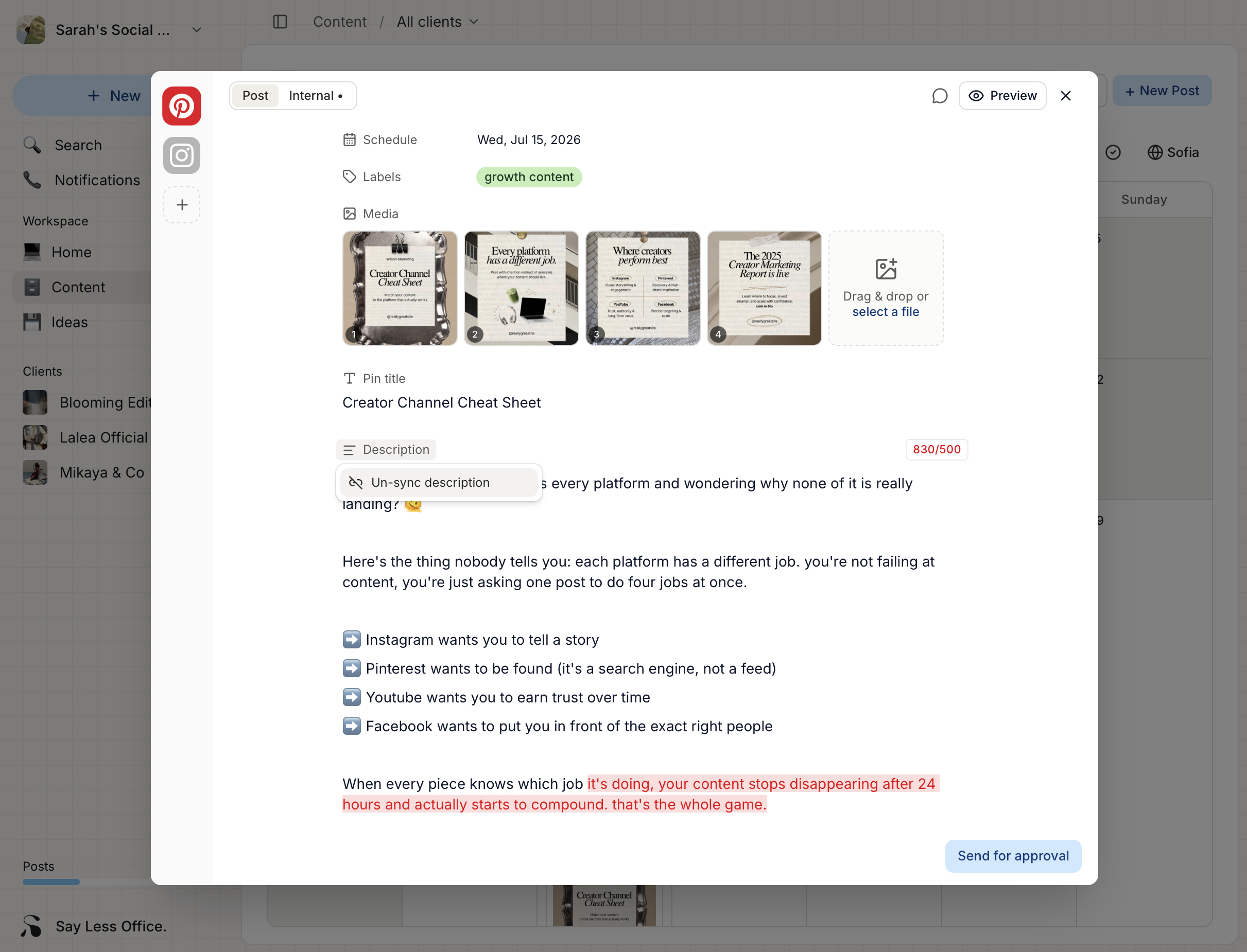
To go back to shared, click the label again and pick Sync caption. The active account's value overwrites the shared value.
How to remove an account from a post
Hover an account chip in the rail. A small x appears in its top-right corner. Clicking it opens a confirmation - removing an account deletes that account's variant of the post. The other variants stay. Undo isn't available, so double-check before confirming.
Each variant has its own status and thread
Every variant is treated as a full post in its own right. That means:
- Each variant has its own status (Draft / Review needed / Approved / etc). You can approve the Instagram variant while the LinkedIn one is still being revised.
- Each variant has its own Conversation thread. Comments the client leaves on Instagram don't bleed into the LinkedIn thread.
- Each variant is checked against its own platform's caption limit.