
Getting around your portal
Your portal has two main pages, and the sidebar on the left is how you move between them. This article walks through the whole layout in about a minute.
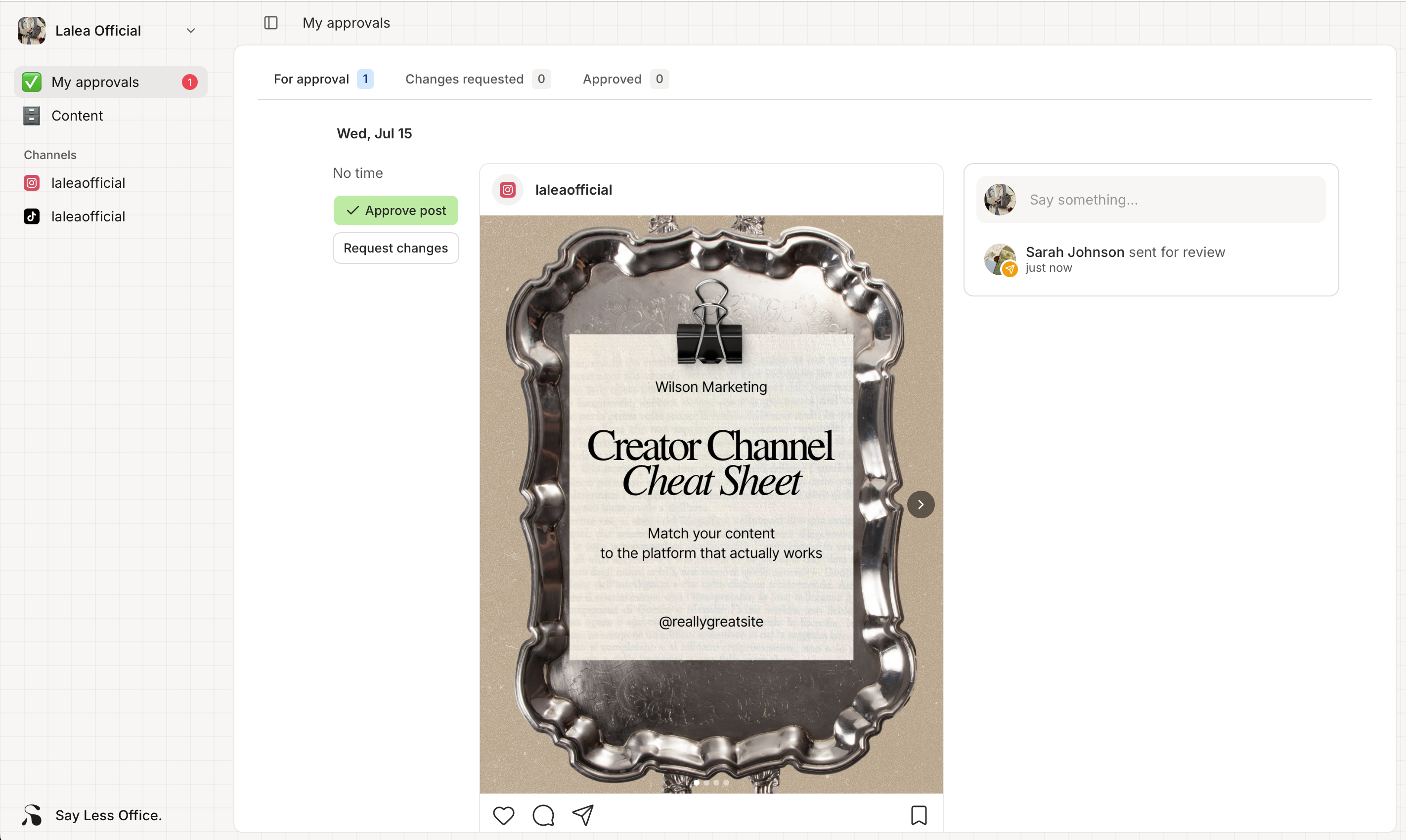
What's in the sidebar
The left sidebar is the same on every page.
- Your project name and logo sit at the top. Click it and a small menu opens with Settings (for your email preferences - see Managing your email notifications) and Log out.
- My approvals is the landing page: posts your SMM is asking you to look at.
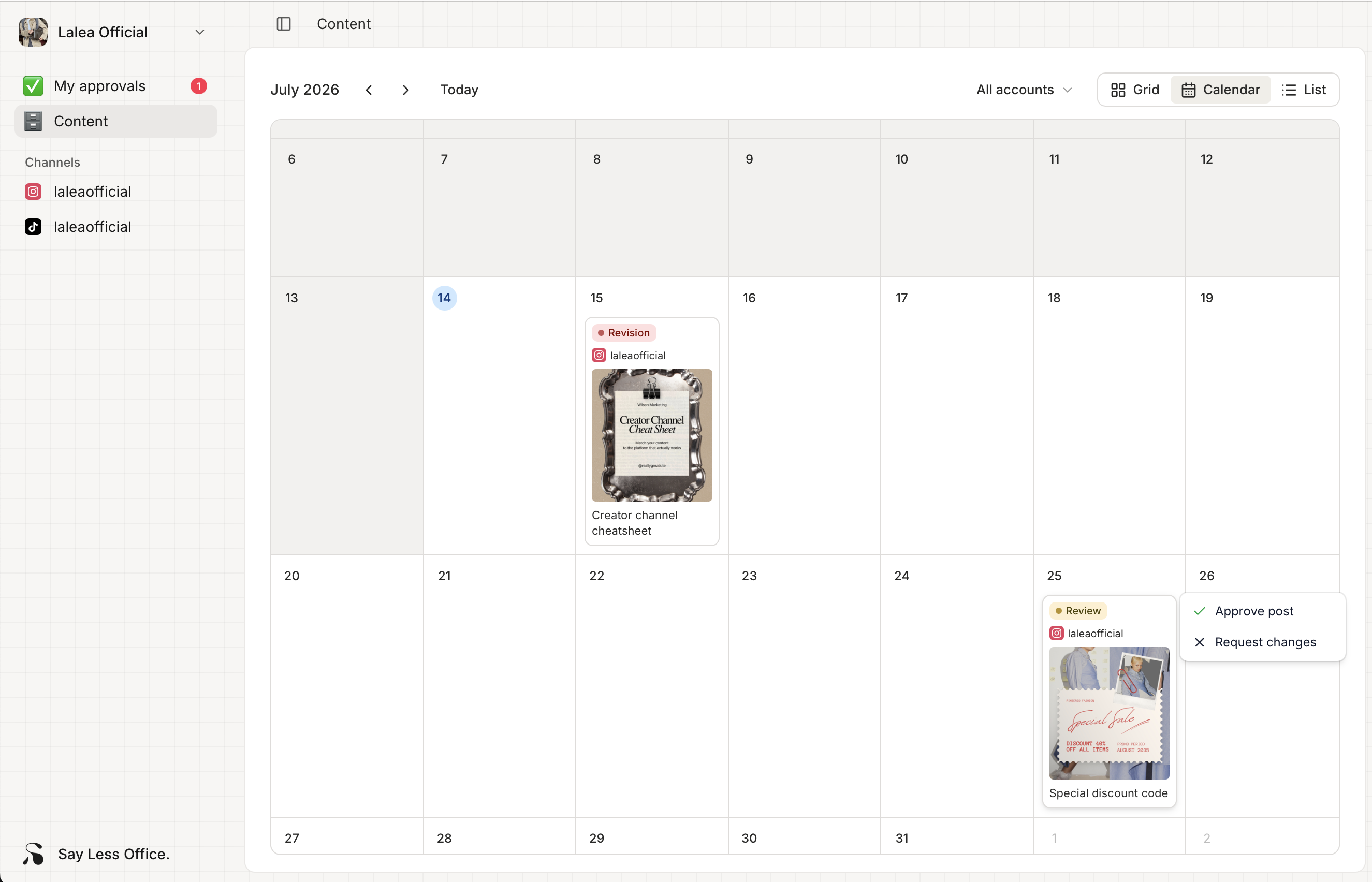
- Content is where every post lives - approved, upcoming, published, all of them.
- Your channels are listed below the main nav (Instagram, TikTok, Facebook, etc.). Click one to filter the Content page to that channel only.
If there are posts waiting for your review, a red number appears next to My approvals so you know something needs your attention.
What's on the My approvals page
This is what you'll spend most of your time on. It has three tabs at the top:
- For approval - posts your SMM has sent over. This is the one you actually act on: you'll either approve them or send them back with changes.
- Changes requested - posts you've sent back. They sit here until the SMM edits them and re-submits.
- Approved - posts you've already given the green light.
When there's nothing in the current tab, the page tells you so - "Nothing to review" is the normal, healthy state.
What's on the Content page
Content is where every post lives, not just the ones needing your review. Three ways to look at it:
- Calendar - a month view with each post on the day it's meant to go live.
- List - a flat, dense list, grouped by date. Useful if you're hunting for a specific post.
- Grid - an Instagram-style 3-column preview of what your feed will look like once everything publishes.
Switch between them from the toggle at the top of the page.
Getting notified about new posts
You'll get an email from Say Less Office when there's something for you to review, and another when a post you're following gets a new comment. You can turn either off in Settings.