
Reviewing a post
When your SMM sends you a post for approval, it lands on My approvals under the For approval tab, and you get an email from Say Less Office. Reviewing it means opening the post, reading what's there, and hitting one of two buttons - Approve post or Request changes - which sit to the left of the post preview.
Where the post shows up
On My approvals, the post is already open by default - preview on the left, conversation panel on the right, no extra click needed. If you're on the Content page instead (Calendar, List, or Grid), click the post card to open the same preview + conversation view.
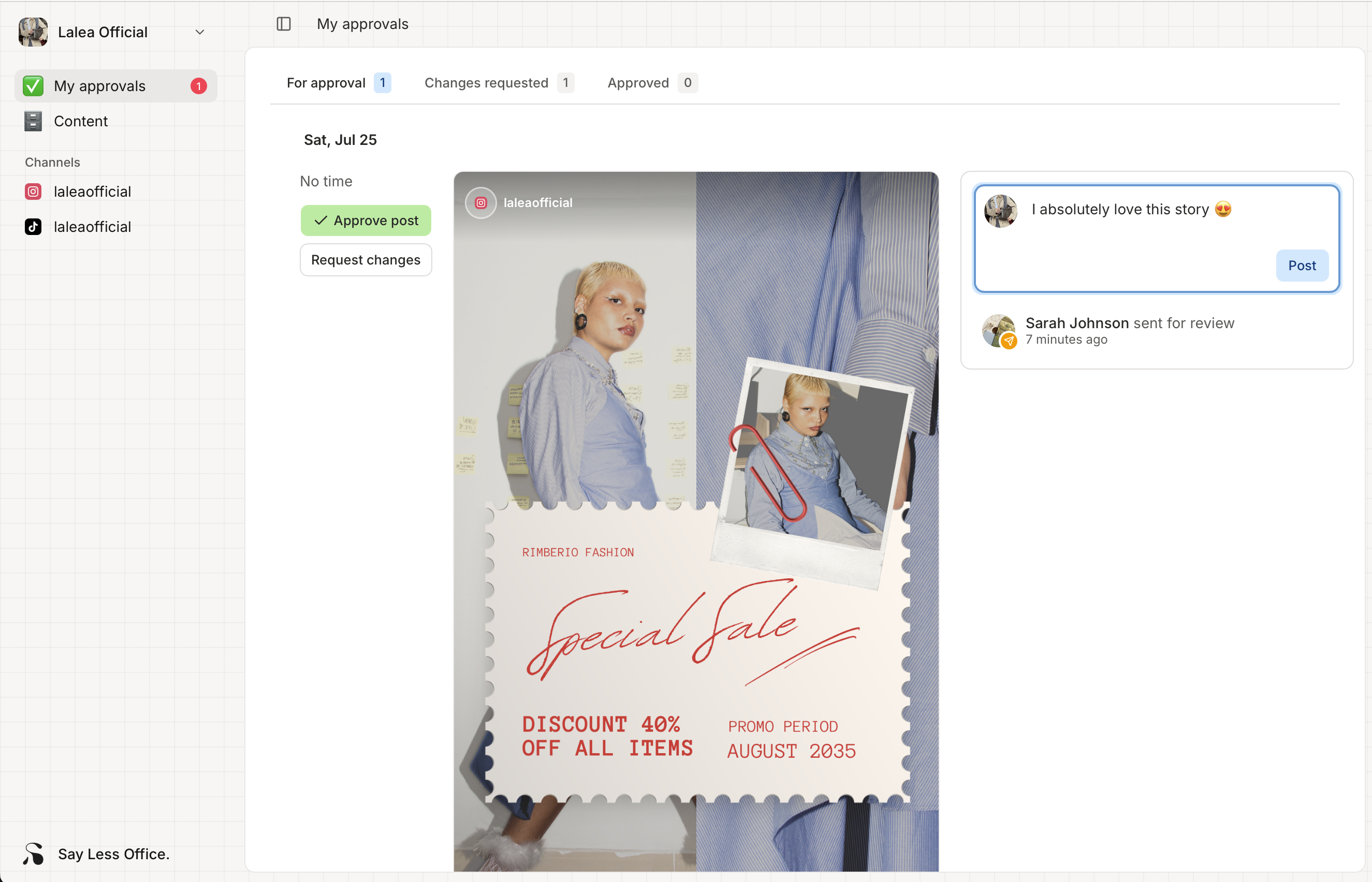
What's on the screen
The rendering at the top is designed to match the platform: an Instagram-style feed card for an Instagram post, a Facebook card for Facebook, a TikTok video frame for TikTok. What you see is what your followers will see, right down to how the caption line-breaks and where the "more" cutoff sits. Click "more" to expand the caption, same as on Instagram itself.
Below the rendering is the Conversation thread - any notes your SMM left for you, plus a place for you to leave one back (see Commenting on a post).
How to decide between Approve and Request changes
There are two buttons at the bottom of the post:
- Approve - you're happy, it can go live as-is. See Approving a post.
- Request changes - something needs to be adjusted first. See Requesting changes on a post.
There's no "save for later" or "I'll come back to this" button - the post just stays in For approval until you act on it, so it's totally fine to close the tab and come back tomorrow.